SOC HTB - Section 3: Windows Event Logs & Finding Evil
Introduction
Windows Event Logs
Windows Event Logging Basics
Windows Event Logs are an intrinsic part of the Windows Operating System.
Event logs can be accessed using the Event Viewer application or programmatically using APIs such as the Windows Event Log API.
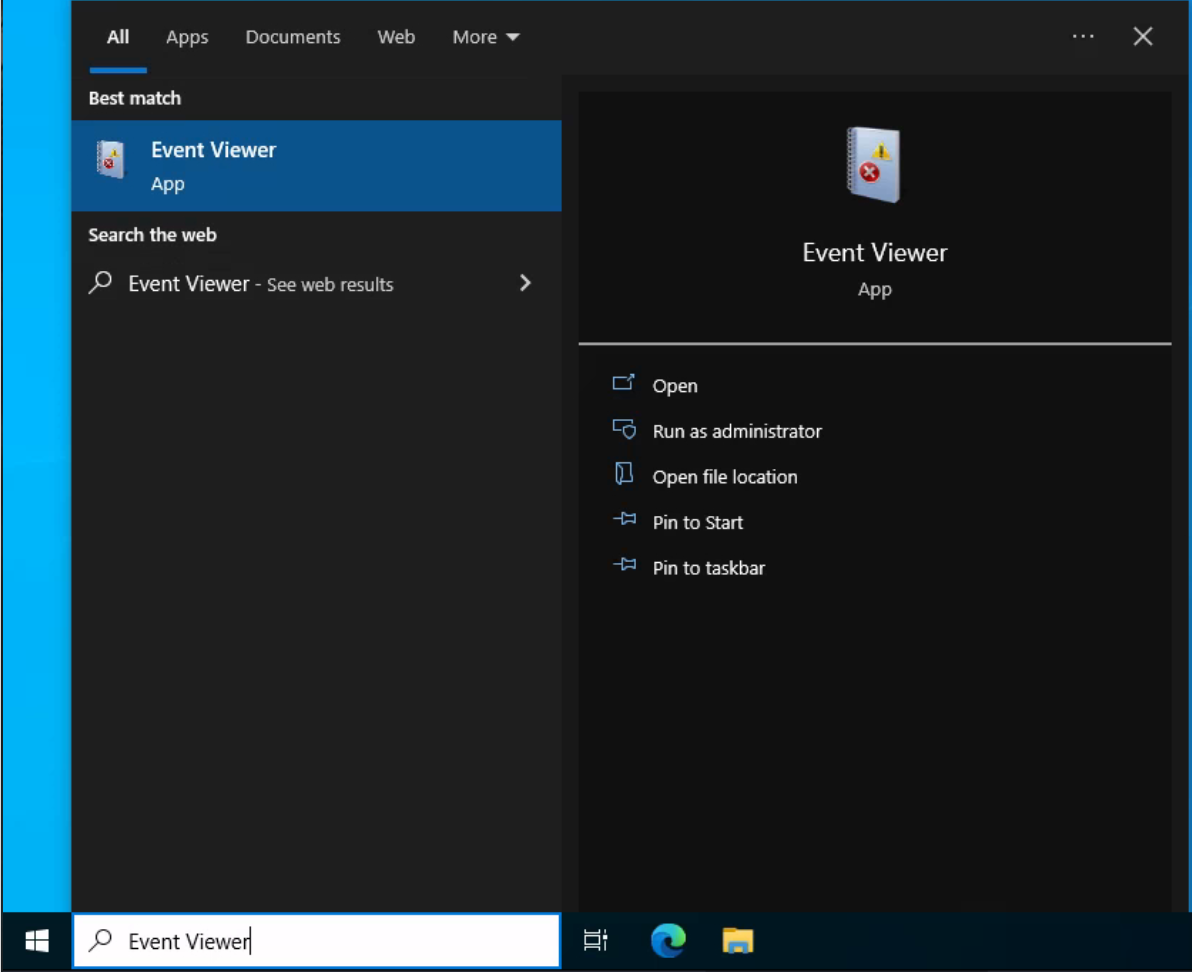
The logs are categorized into different event logs. The default Windows event logs consist of
Application→ application errors.Security→ security events.Setup→ system setup activities.System→ general system information.Forwarded Events→ showcasing event log data forwarded from other machines.
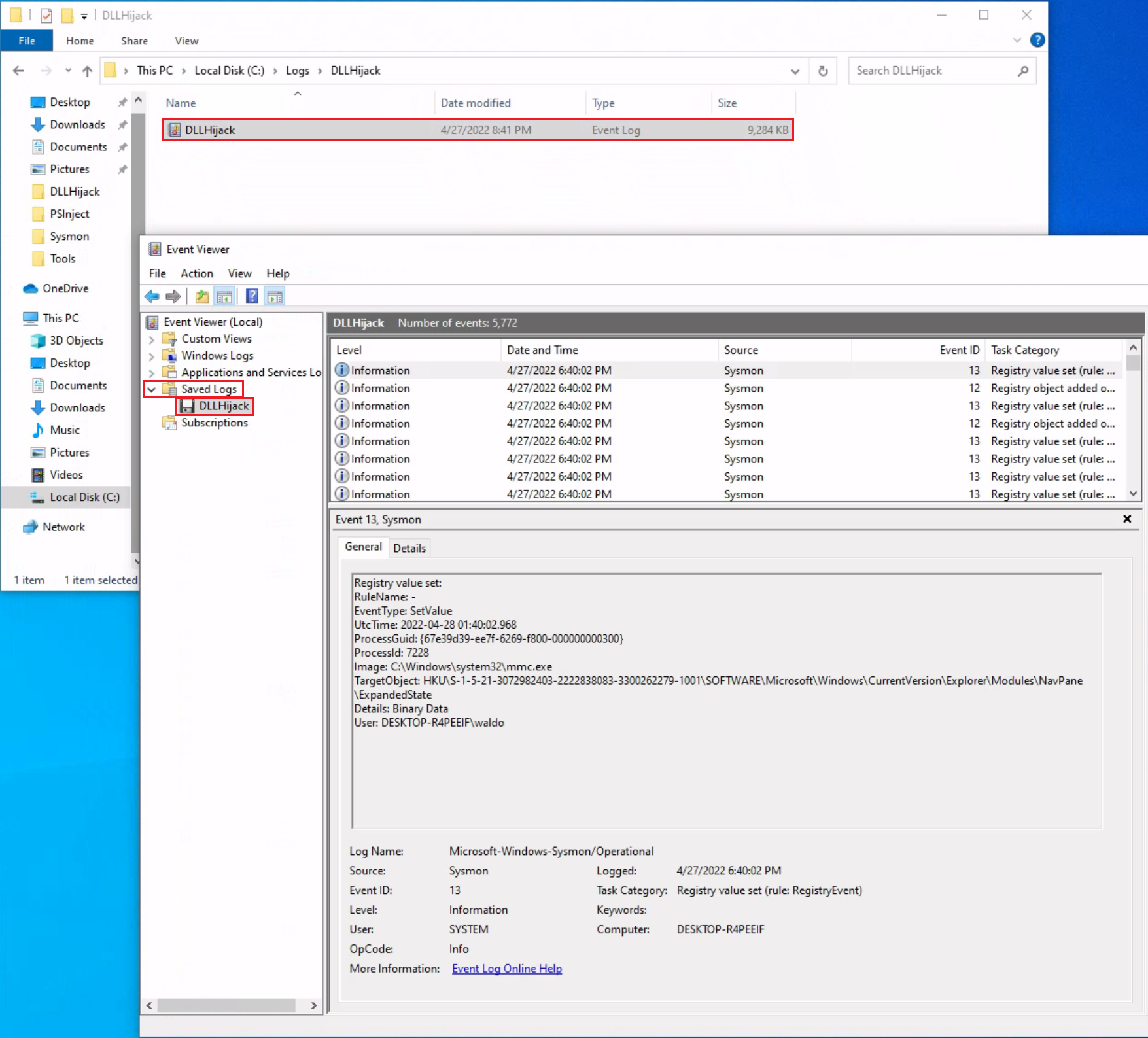
Note: Windows Event Viewer has the ability to open and display previously saved .evtx files, which can be then found in the “Saved Logs” section.
The Anatomy of an Event Log
#1 Application logs
When examining Application logs, we encounter two distinct levels of events: information and error.
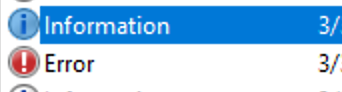
Information events provide start or stop events, highlight specific errors and offer detailed insights into the encountered issues.
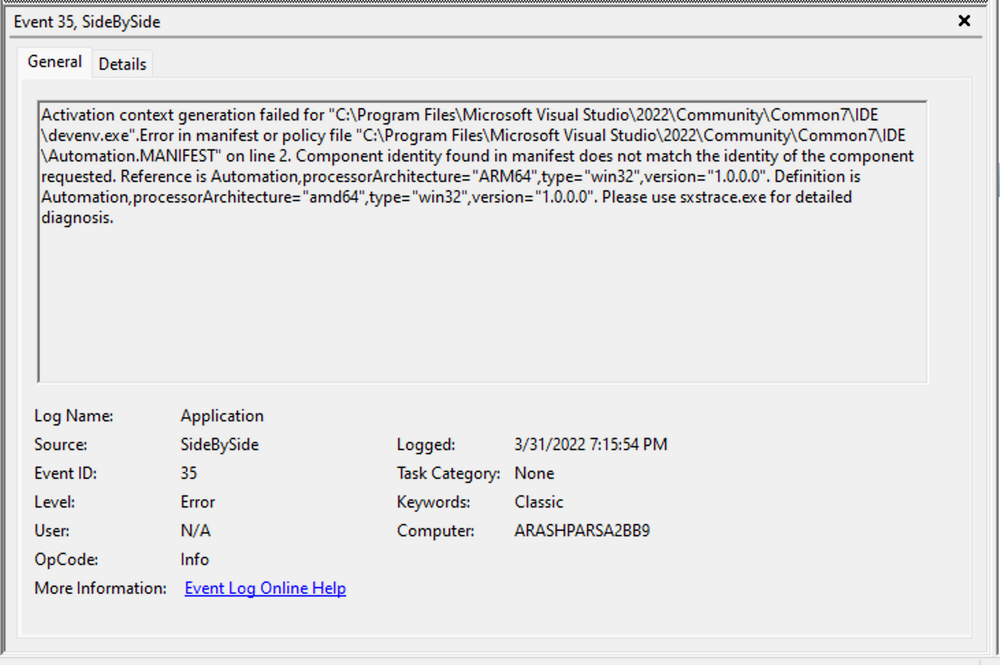
Each entry in the Windows Event Log is an “Event” and contains the following primary components:
Log Name: The name of the event log (e.g., Application, System, Security, etc.).Source: The software that logged the event.Event ID: A unique identifier for the event.Task Category: This often contains a value or name that can help us understand the purpose or use of the event.Level: The severity of the event (Information, Warning, Error, Critical, and Verbose).Keywords: Keywords are flags that allow us to categorize events in ways beyond the other classification options. These are generally broad categories, such as “Audit Success” or “Audit Failure” in the Security log. is particularly useful when filtering event logs for specific types of events.User: The user account that was logged on when the event occurred.OpCode: This field can identify the specific operation that the event reports.Logged: The date and time when the event was logged.Computer: The name of the computer where the event occurred.XML Data: All the above information is also included in an XML format along with additional event data.
By clicking on the details, we can further analyze the event’s impact using XML or a well-formatted view.
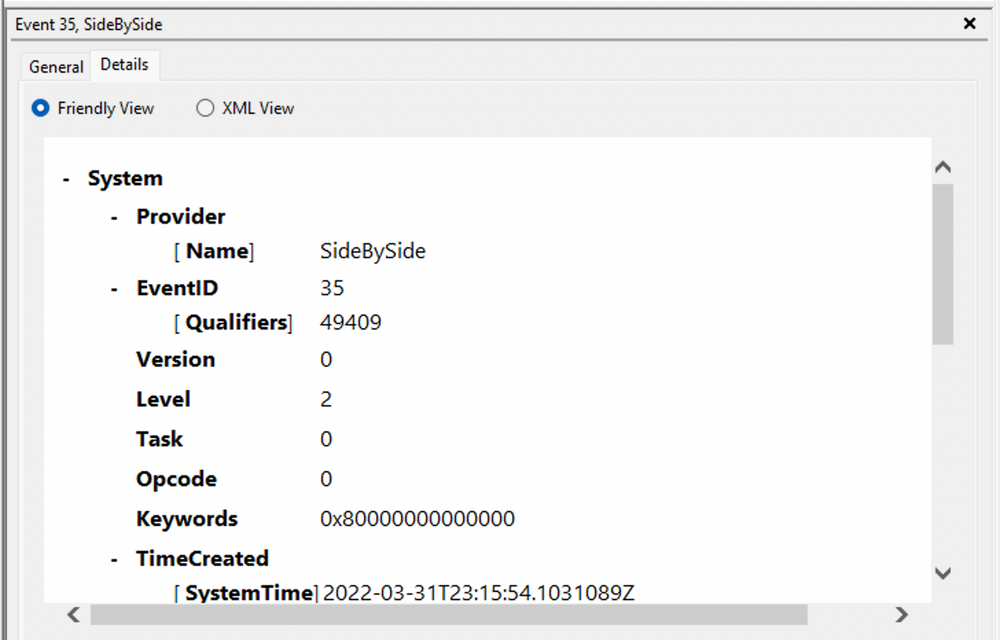
we can extract supplementary information from the event log, such as the process ID where the error occurred
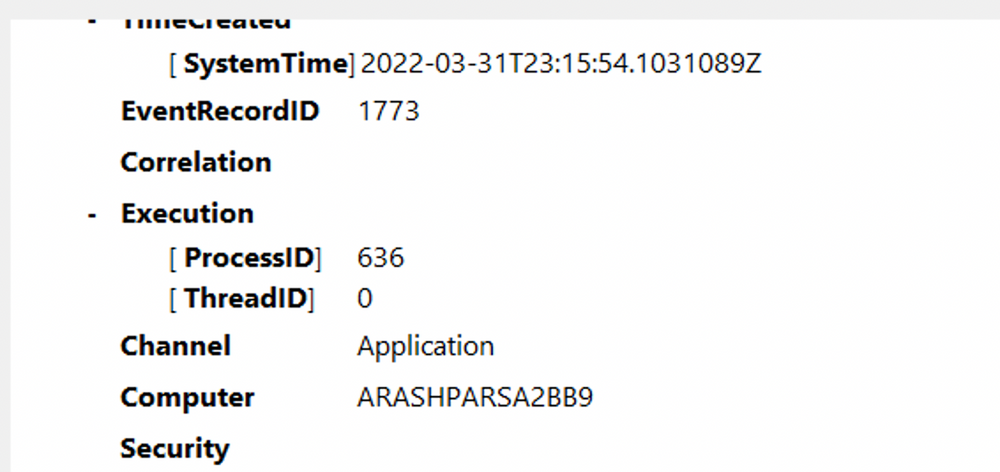
#2 Security logs
Let’s consider event ID 4624, This event generates when a logon session is created (on destination machine). It generates on the computer that was accessed, where the session was created.
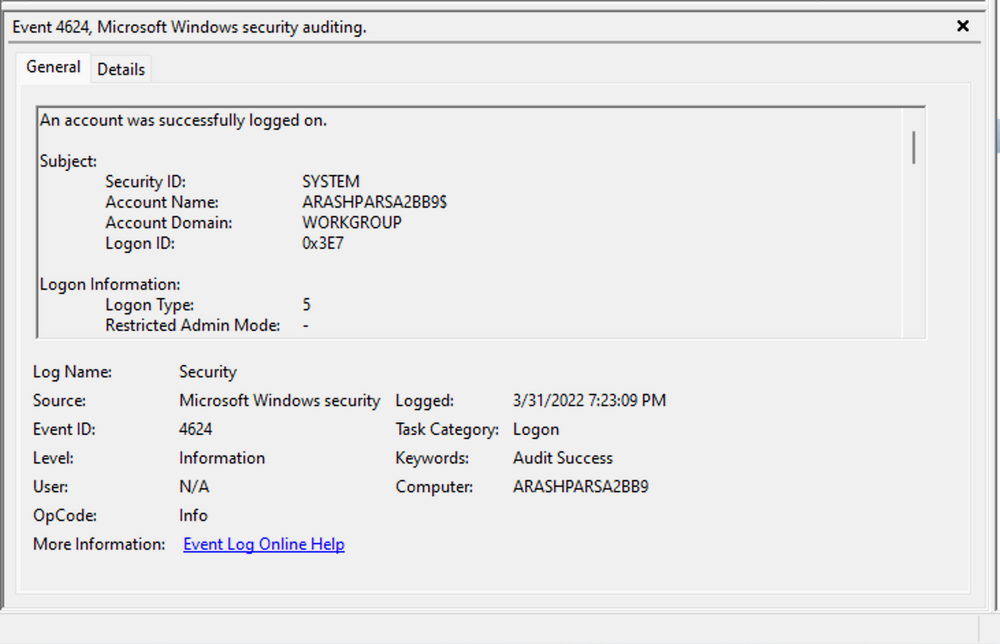
Within this log, we find crucial details like “Logon ID” (one and only identification code for the logon session), which allows us to correlate this logon with other events sharing the same “Logon ID”
Leveraging Custom XML Queries
By navigating to “Filter Current Log” -> “XML” -> “Edit Query Manually”, we can create custom XML queries to identify related events using the “Logon ID”
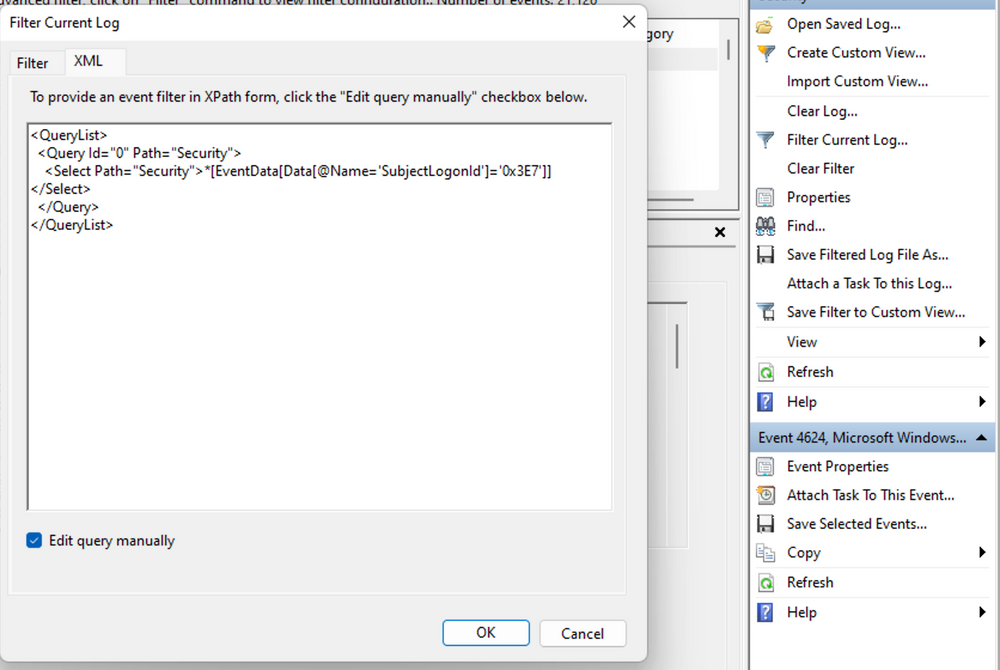
If you need help writing a search query, you can turn on the automatic filters to see how they build the XML code for you. If you want to learn more, Microsoft has helpful guides on how to use XML filters in the Windows Event Viewer.
As you read through the logs, you will start to see a story of what actually happened. For example, we can start by looking at Event ID 4907, which simply means someone changed a security rule.
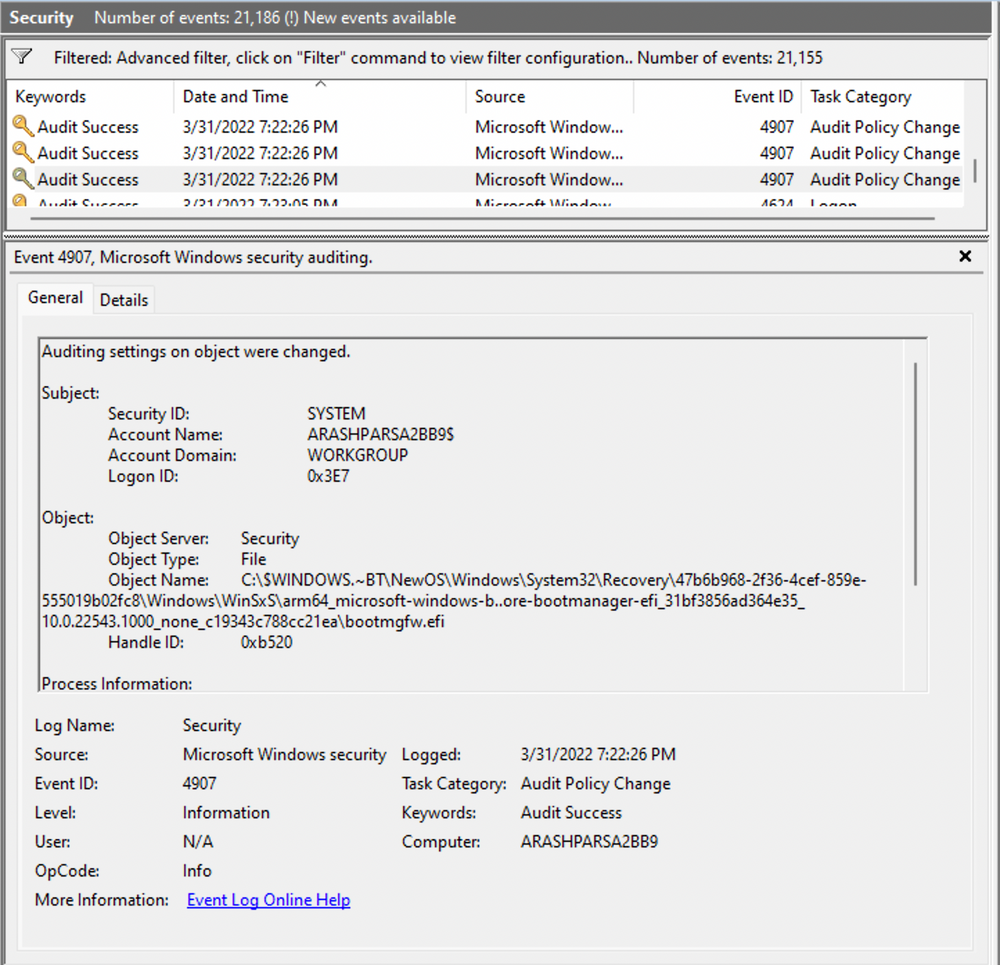
When we read the event description, we find an important piece of information: “This event happens when the SACL (System Access Control Lists) of a file or registry key is changed.”
Based on this information, it becomes apparent that the permissions of a file were altered to modify the logging or auditing of access attempts. Further exploration of the event details reveals additional intriguing aspects.
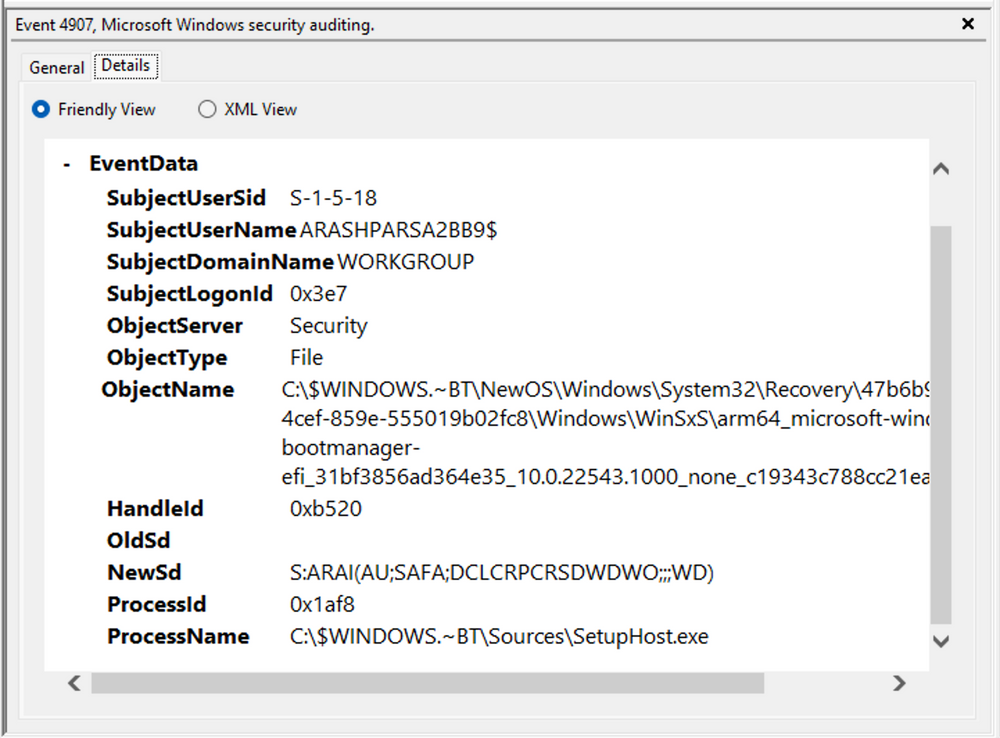
the process responsible for the change is identified as “SetupHost.exe”, indicating a potential setup process. The target that was affected is the “bootmanager” (the part that helps the computer start up).
By comparing the old security information (“OldSd”) with the new one (“NewSd”), we can see exactly what permissions were changed. If you want to understand the complicated codes in this security information, you can read guide articles on “ACE Strings” and “SDDL Syntax.”
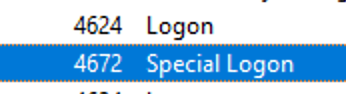
Analyzing the special logon event, we gain insights into token permissions granted to the user upon a successful logon.
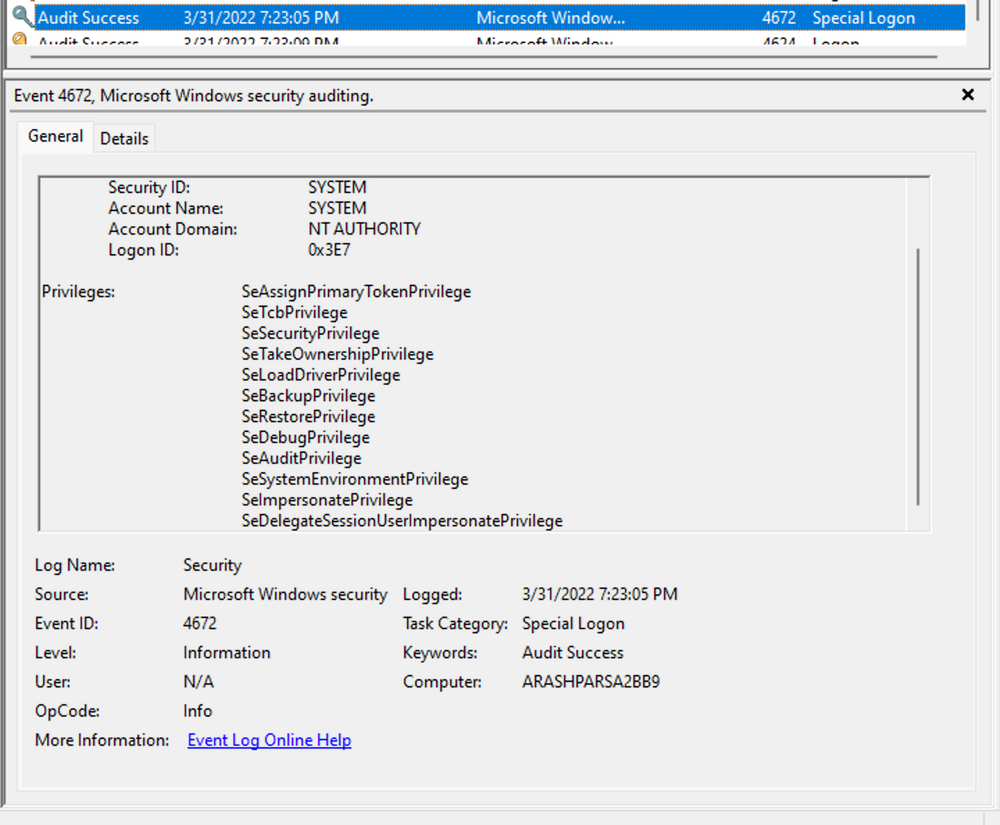
A comprehensive list of privileges can be found in the documentation on privilege constants. For instance, the “SeDebugPrivilege” privilege indicates that the user possesses the ability to tamper with memory that does not belong to them.
Useful Windows Event Logs
| Log Type | Event ID | Event Name | Description |
|---|---|---|---|
| System Logs | 1074 | System Shutdown/Restart | Indicates when and why the system was shut down or restarted. Monitoring these events helps determine unexpected shutdowns/restarts, revealing potential malicious activity like malware infections or unauthorized access. |
| System Logs | 6005 | The Event log service was started | Marks the time when the Event Log Service was started. Signifies a system boot-up, providing a starting point for investigating performance or security incidents, and can detect unauthorized reboots. |
| System Logs | 6006 | The Event log service was stopped | Signifies the moment when the Event Log Service was stopped (typically during shutdown). Abnormal occurrences could point to intentional service disruption to cover illicit activities. |
| System Logs | 6013 | Windows uptime | Occurs once a day and shows system uptime in seconds. A shorter-than-expected uptime could mean the system was rebooted, signifying potential intrusion or unauthorized activities. |
| System Logs | 7040 | Service status change | Indicates a change in service startup type (e.g., manual to automatic). If a crucial service’s startup type is changed, it could be a sign of system tampering. |
| Security Logs | 1102 | The audit log was cleared | Clearing the audit log is often a sign of an attempt to remove evidence of an intrusion or malicious activity. |
| Security Logs | 1116 | Antivirus malware detection | Logs when Defender detects malware. A surge in these events could indicate a targeted attack or widespread malware infection. |
| Security Logs | 1118 | Antivirus remediation activity has started | Signifies that Defender has begun the process of removing or quarantining detected malware. |
| Security Logs | 1119 | Antivirus remediation activity has succeeded | Signifies that the remediation process for detected malware has been successful. Regular monitoring ensures threats are neutralized. |
| Security Logs | 1120 | Antivirus remediation activity has failed | Counterpart to 1119, indicating the remediation process failed. Should be addressed immediately to ensure threats are effectively neutralized. |
| Security Logs | 4624 | Successful Logon | Records successful logons. Vital for establishing normal user behavior. Abnormal behavior (odd hours/locations) could signify a potential security threat. |
| Security Logs | 4625 | Failed Logon | Logs failed logon attempts. Multiple failed attempts could signify a brute-force attack in progress. |
| Security Logs | 4648 | A logon was attempted using explicit credentials | Triggered when a user logs on with explicit credentials to run a program. Anomalies could indicate lateral movement within a network by attackers. |
| Security Logs | 4656 | A handle to an object was requested | Triggered when a handle to an object (file, registry key, process) is requested. Useful for detecting attempts to access sensitive resources. |
| Security Logs | 4672 | Special Privileges Assigned to a New Logon | Logged when an account logs on with superuser privileges. Helps ensure superuser privileges are not abused or used maliciously. |
| Security Logs | 4698 | A scheduled task was created | Triggered when a scheduled task is created. Helps detect persistence mechanisms, as attackers often use scheduled tasks to maintain access and run malicious code. |
| Security Logs | 4700 & 4701 | A scheduled task was enabled/disabled | Records the enabling/disabling of a scheduled task. Provides insight into suspicious activities, as tasks are often manipulated for persistence. |
| Security Logs | 4702 | A scheduled task was updated | Triggered when a scheduled task is updated. Monitoring these updates can help detect changes that may signify malicious intent. |
| Security Logs | 4719 | System audit policy was changed | Records changes to the computer’s audit policy. Could indicate someone trying to cover their tracks by turning off auditing. |
| Security Logs | 4738 | A user account was changed | Records changes made to user accounts (privileges, groups, settings). Unexpected changes can be a sign of account takeover or insider threats. |
| Security Logs | 4771 | Kerberos pre-authentication failed | Similar to 4625 but specifically for Kerberos authentication. An unusual amount could indicate an attacker brute-forcing your Kerberos service. |
| Security Logs | 4776 | The domain controller attempted to validate the credentials for an account | Tracks successful and failed credential validations by the DC. Multiple failures could suggest a brute-force attack. |
| Security Logs | 5001 | Antivirus real-time protection configuration has changed | Indicates Defender’s real-time protection settings were modified. Unauthorized changes could indicate attempts to disable Defender. |
| Security Logs | 5140 | A network share object was accessed | Logged whenever a network share is accessed. Critical in identifying unauthorized access to network shares. |
| Security Logs | 5142 | A network share object was added | Signifies the creation of a new network share. Unauthorized shares could be used to exfiltrate data or spread malware. |
| Security Logs | 5145 | A network share object was checked to see whether client can be granted desired access | Indicates someone attempted to access a network share. Frequent checks might indicate a user/malware mapping shares for future exploits. |
| Security Logs | 5157 | The Windows Filtering Platform has blocked a connection | Logged when a connection attempt is blocked. Helpful for identifying malicious traffic on your network. |
| Security Logs | 7045 | A service was installed in the system | A sudden appearance of unknown services might suggest malware installation, as many types install themselves as services. |
Analyzing Evil With Sysmon & Event Logs
Sysmon Basics
System Monitor (Sysmon) is a Windows system service and device driver that remains resident across system reboots to monitor and log system activity to the Windows event log.
→ Sysmon provides detailed information about process creation, network connections, changes to file creation time, and more (basically more information).
Sysmon’s primary components include:
- A Windows service for monitoring system activity.
- A device driver that assists in capturing the system activity data.
- An event log to display captured activity data.
Sysmon’s unique capability lies in its ability to log information that typically doesn’t appear in the Security Event logs.
Sysmon uses Event Type IDs to sort different computer activities:
- ID Type 1 means a program just started
- ID Type 3 means the computer connected to a network
- Full list of these IDs: here
To stop Sysmon from recording too much useless information, it uses an XML settings file. This file lets you choose exactly what to record and what to ignore (like ignoring specific programs or IP addresses). You can use this popular, ready-made settings files from the community:
- For a complete setup: https://github.com/SwiftOnSecurity/sysmon-config. <– We going to use this one in this section!
- For a more flexible, piece-by-piece setup: https://github.com/olafhartong/sysmon-modular.
To begin, download Sysmon from Microsoft’s official website. Once downloaded, open an administrator command prompt (open it inside sysmon folder or type in full path like mine) and execute the following command to install Sysmon.
1
C:\Tools\Sysmon> sysmon.exe -i -accepteula -h md5,sha256,imphash -l -n
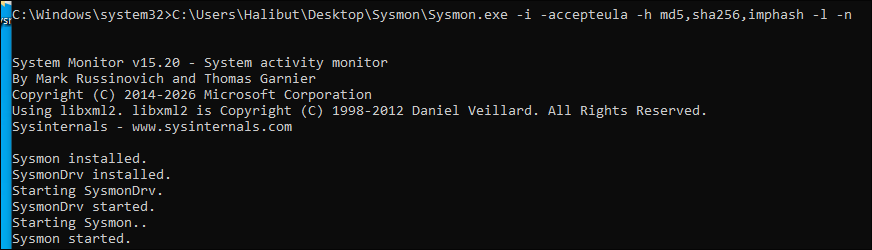
To utilize a custom Sysmon configuration, execute the following after installing Sysmon.
1
C:\Tools\Sysmon> sysmon.exe -c <filename.xml>
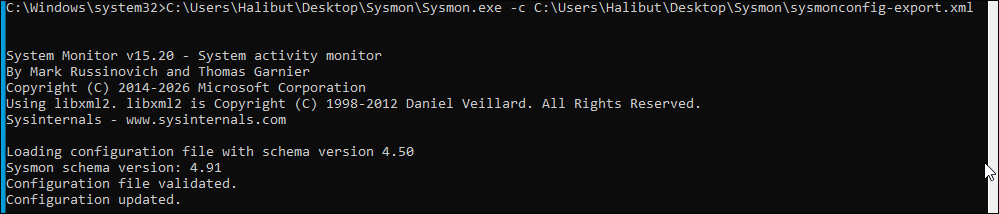
Note: It should be noted that Sysmon for Linux also exists.
Detection Example 1: Detecting DLL Hijacking
To detect a DLL hijack, we need to focus on Event Type 7, which corresponds to module load events (whenever process A load library B).
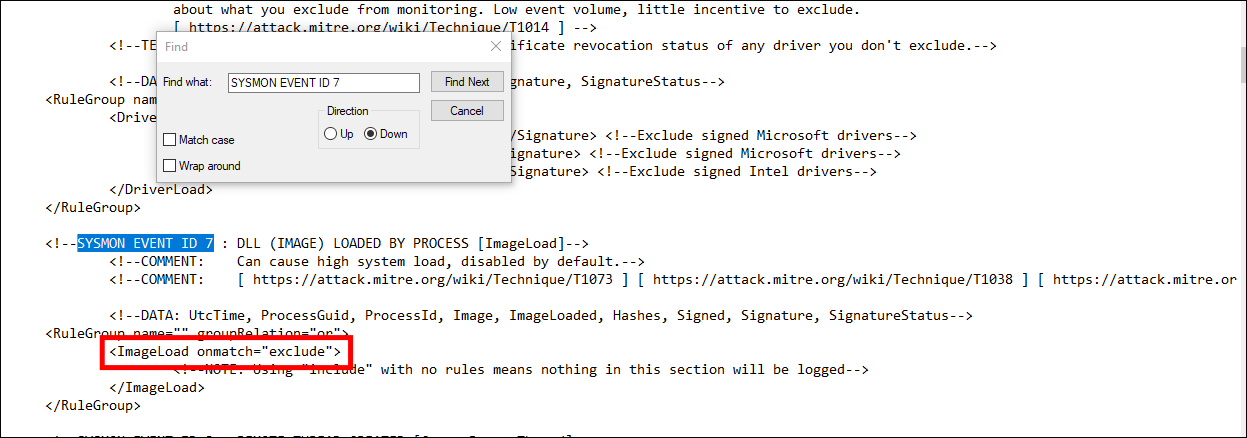
We can view these events after configured sysmon, navigate to the Event Viewer and access “Applications and Services” -> “Microsoft” -> “Windows” -> “Sysmon”. A quick check will reveal the presence of the targeted event ID.
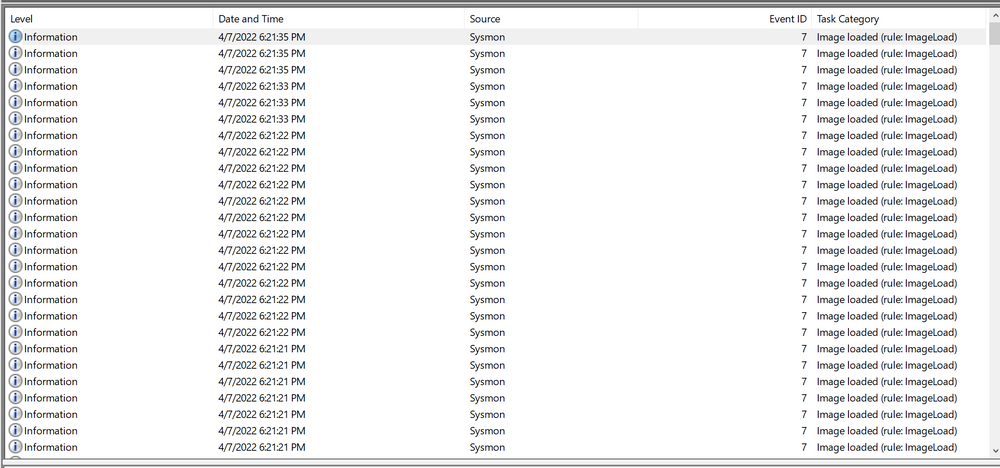
Let’s now see how a Sysmon event ID 7 looks like.
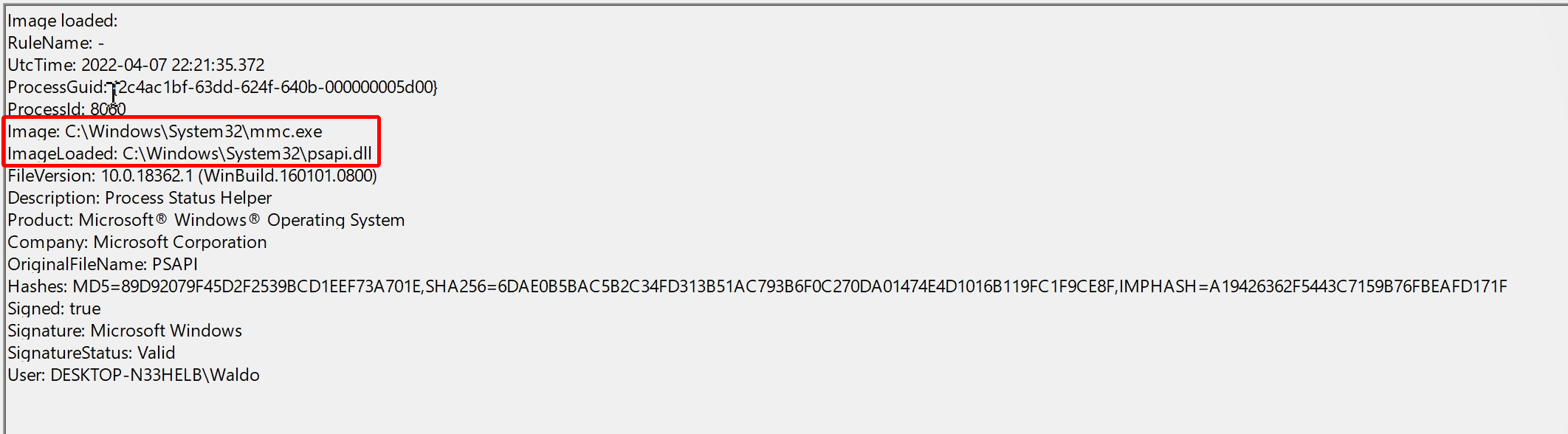
The event log contains:
- DLL’s signing status (in this case, it is Microsoft-signed).
- The process or image responsible for loading the DLL.
- The specific DLL that was loaded.
In our example, we observe that “MMC.exe” loaded “psapi.dll”, which is also Microsoft-signed. Both files are located in the System32 directory.
This blog provide alot about DLL Hijacks, but we will focus on the vulnerable executable calc.exe and a list of DLLs that can be hijacked.
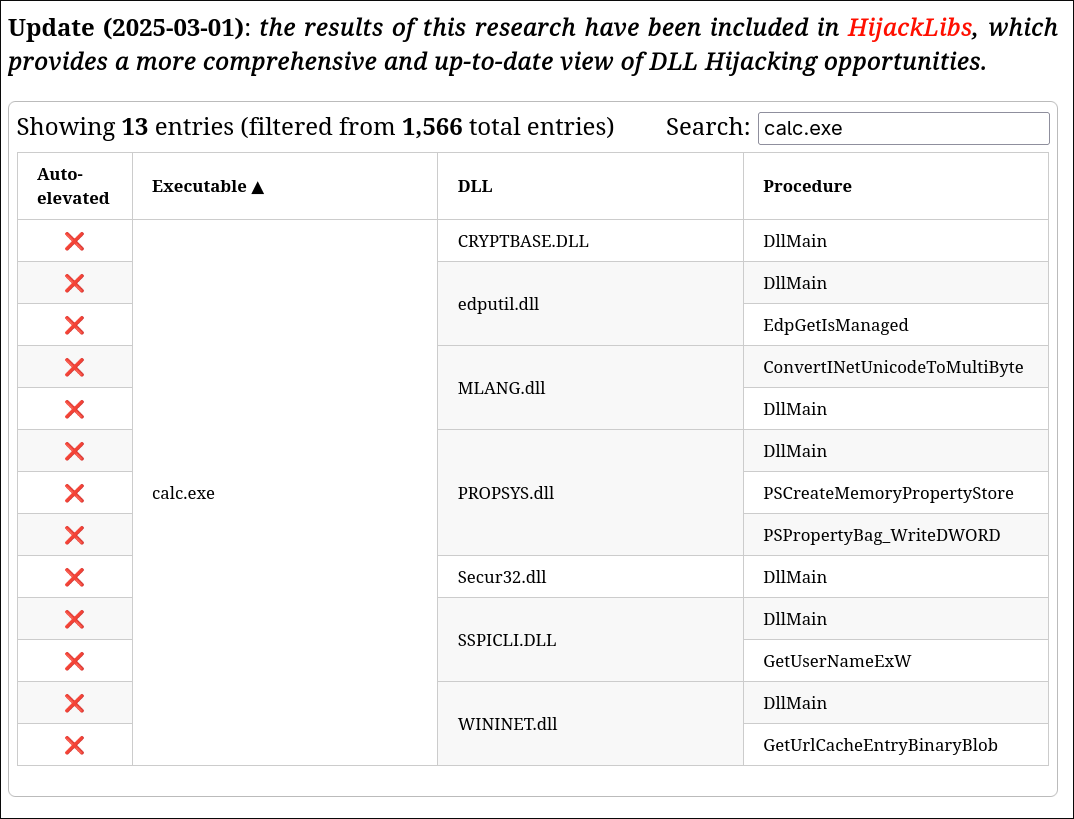
To simplify the process, we can utilize Stephen Fewer’s “hello world” reflective DLL.
Note: DLL hijacking does not require reflective DLLs.
- Download and rename
reflective_dll.x64.dlltoWININET.dll - Moving
calc.exefromC:\Windows\System32along withWININET.dllto a writable directory (such as theDesktopfolder) - Executing
calc.exe, we achieve success. Instead of the Calculator application, a MessageBox is displayed.
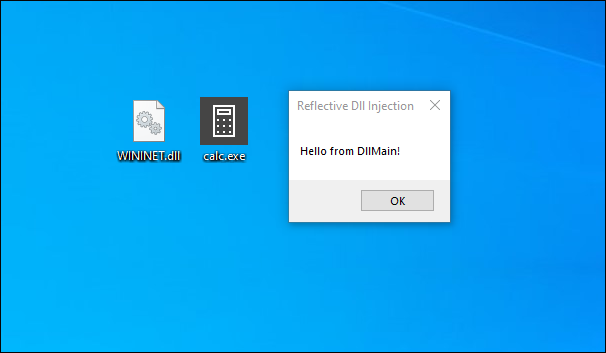
we analyze the impact of the hijack.
we filter the event logs to focus on Event ID 7, which represents module load events, by clicking “Filter Current Log…”.
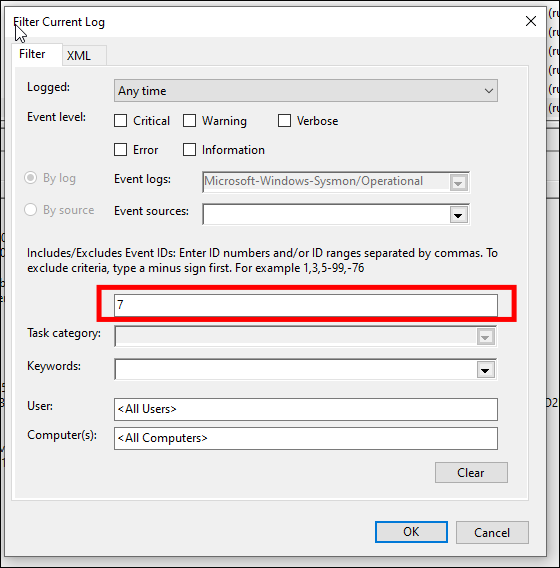
Subsequently, we search for instances of “calc.exe”, by clicking “Find…” (I’m searching for WININE.dll just for quick review).
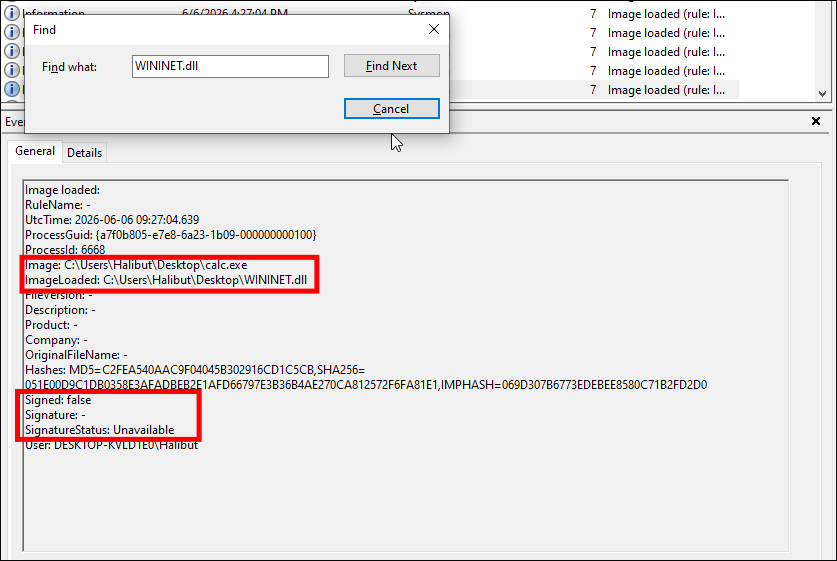
Now, we can observe several indicators of compromise (IOCs) to create effective detection rules:
- Suspicious
calc.exeLocation: The realcalc.exeshould only ever live inSystem32(orSyswow64). If you find a copy sitting in a writable directory, that’s a direct Indicator of Compromise (IOC). - Abnormal
WININET.dllLoading:calc.exeshould only loadWININET.dlldirectly fromSystem32. Ifcalc.exeloads it from anywhere else, you can confidently flag it as a DLL hijack. - Missing Digital Signature: The legitimate Microsoft
WININET.dllis officially signed. The malicious, injected DLL will be completely unsigned.
Detection Example 2: Detecting Unmanaged PowerShell/C-Sharp Injection
C# is a managed language that compiles into bytecode rather than direct assembly. It strictly requires the Common Language Runtime (CLR) to process and execute its code.
Security defenders can use tools like Process Hacker to monitor processes for the presence of the CLR, which helps in detecting unauthorized or unusual C# code injections within an environment.
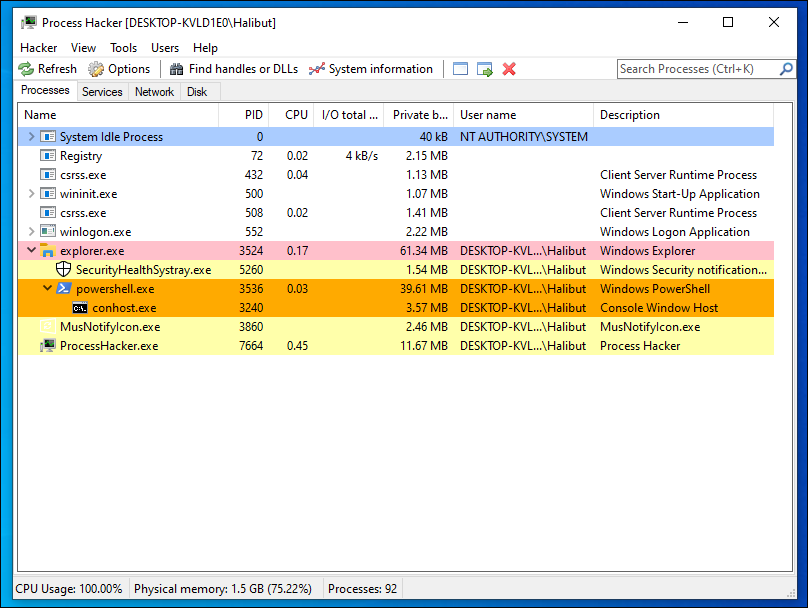
Process Hacker allows users to monitor and sort system processes. It uses color-coding to distinguish different types of processes. Managed .NET processes, such as powershell.exe, are distinctly highlighted in green for easy identification.
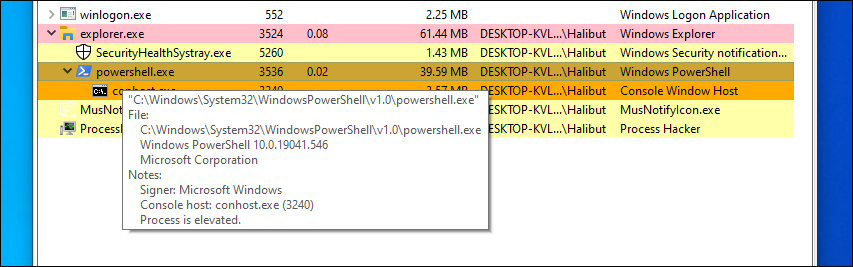
Examining the module loads for powershell.exe, by right-clicking on powershell.exe, clicking “Properties”, and navigating to “Modules”, we can find relevant information.
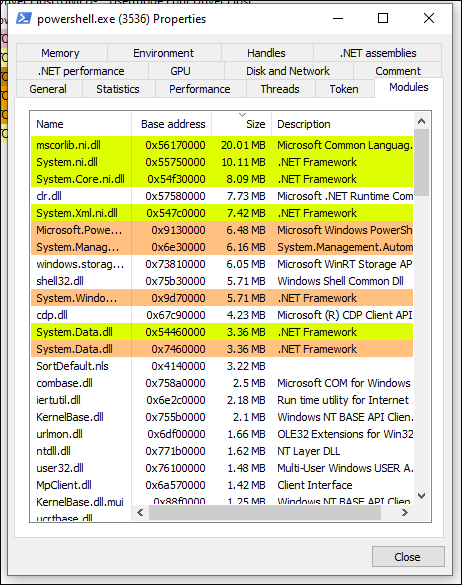
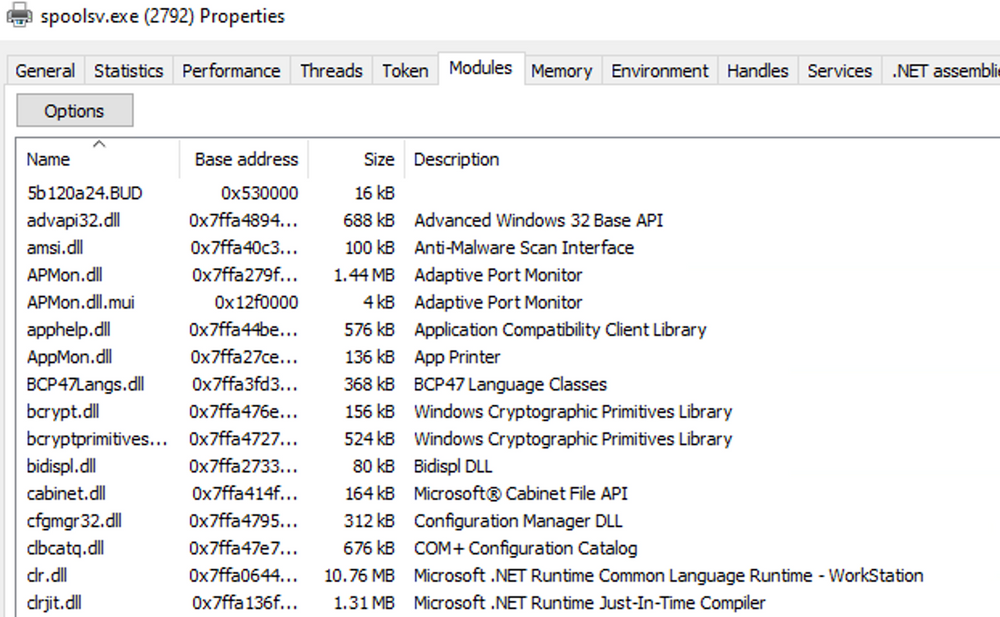
The presence of “Microsoft .NET Runtime…”, clr.dll, and clrjit.dll should attract our attention.
Because PowerShell relies on .NET, it must load the .NET execution engine into its memory space to function:
clr.dll(Common Language Runtime): This is the core engine of .NET. It manages memory, security, and execution for managed code.clrjit.dll(Just-In-Time Compiler): When PowerShell runs a script or command, it compiles the .NET bytecode into native machine code on the fly so your CPU can execute it.
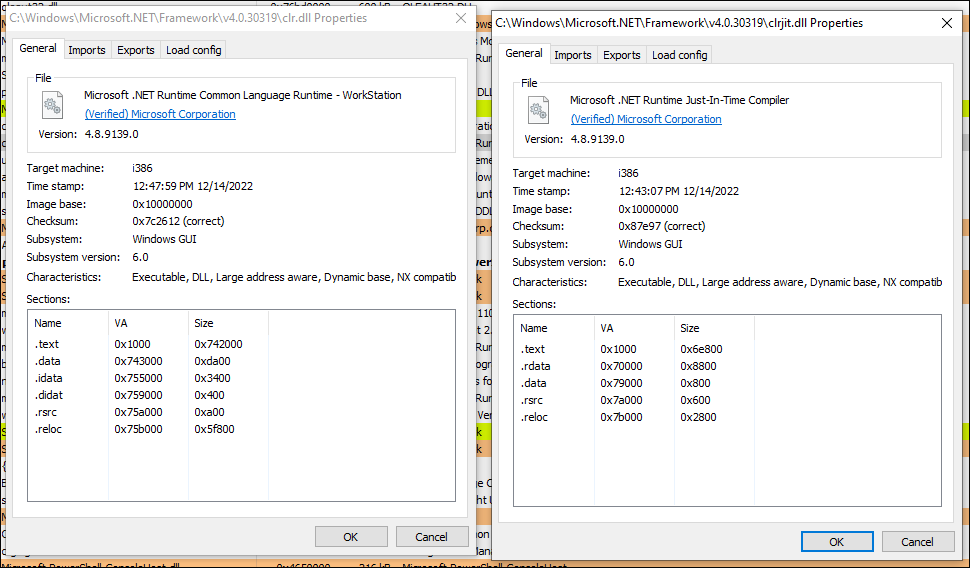
Unmanaged PowerShell injection is a hacking technique where an attacker runs PowerShell commands inside the memory of a normal, innocent Windows program (like a printer service or Notepad) instead of using the actual powershell.exe program.
Execute-assembly is a hacking technique where an attacker runs a fully built .NET program (called an “assembly”) entirely inside the computer’s memory, without ever saving the file to the hard drive.
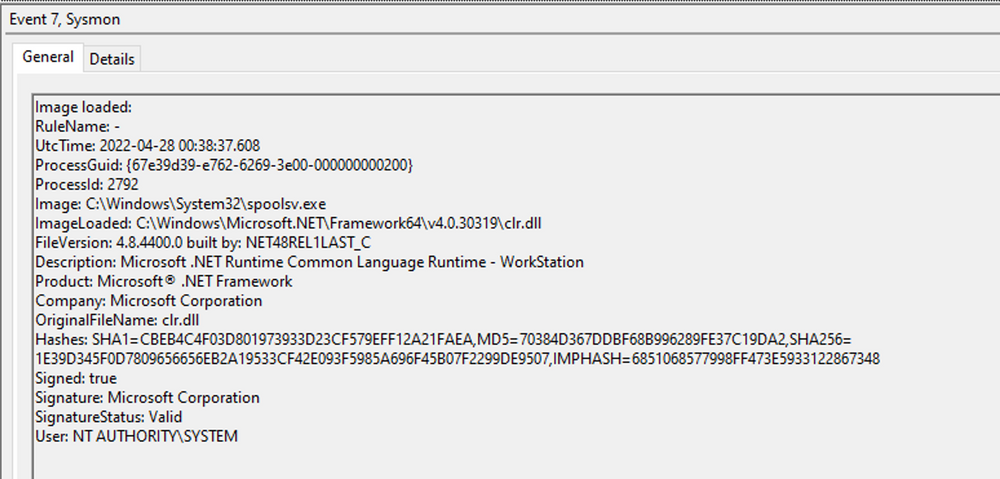
→ If we observe these DLLs loaded in processes that typically do not require them, it suggests a potential execute-assembly or unmanaged PowerShell injection attack.
To showcase unmanaged PowerShell injection, we can inject an unmanaged PowerShell-like DLL into a random process, such as spoolsv.exe. We can do that by utilizing the PSInject project in the following manner.
1
2
3
powershell -ep bypass
Import-Module .\Invoke-PSInject.ps1
Invoke-PSInject -ProcId [Process ID of spoolsv.exe] -PoshCode "V3JpdGUtSG9zdCAiSGVsbG8sIEd1cnU5OSEi"
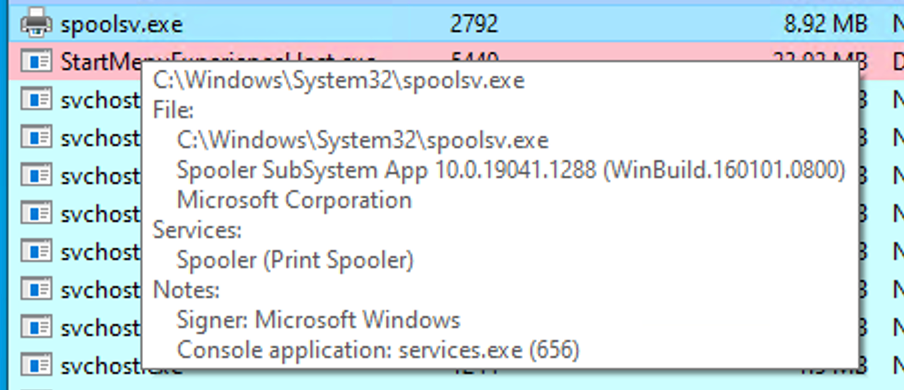
After the injection, we observe that “spoolsv.exe” transitions from an unmanaged to a managed state.
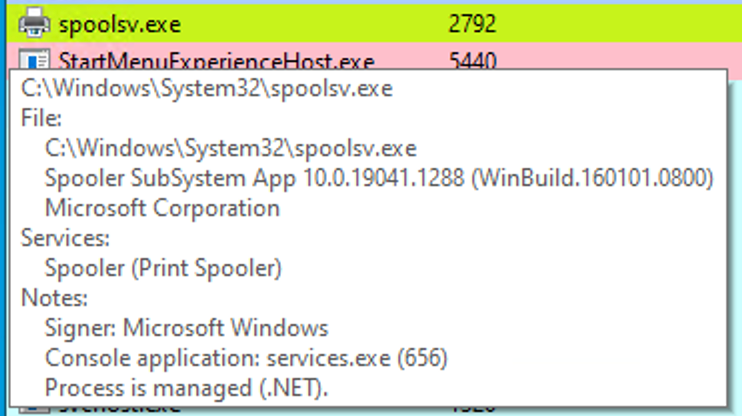
Additionally, by referring to both the related “Modules” tab of Process Hacker and Sysmon Event ID 7, we can examine the DLL load information to validate the presence of the aforementioned DLLs.
Detection Example 3: Detecting Credential Dumping
Another critical aspect of cybersecurity is detecting credential dumping activities.
Mimikatz is a popular tool used to extract Windows user credentials. It primarily targets the LSASS (Local Security Authority Subsystem Service) process, which manages user logins. By executing the specific command sekurlsa::logonpasswords, attackers can dump password hashes and plaintext passwords directly from memory.
1
2
3
4
5
6
7
8
9
10
11
12
13
14
15
16
17
18
19
20
21
22
23
24
25
26
27
28
29
30
31
32
33
34
35
36
37
38
C:\Tools\Mimikatz> mimikatz.exe

  .#####.   mimikatz 2.2.0 (x64) #18362 Feb 29 2020 11:13:36
 .## ^ ##.  "A La Vie, A L'Amour" - (oe.eo)
 ## / \ ##  /*** Benjamin DELPY `gentilkiwi` ( benjamin@gentilkiwi.com )
 ## \ / ##       > http://blog.gentilkiwi.com/mimikatz
 '## v ##'       Vincent LE TOUX             ( vincent.letoux@gmail.com )
  '#####'        > http://pingcastle.com / http://mysmartlogon.com   ***/

mimikatz # privilege::debug
Privilege '20' OK

mimikatz # sekurlsa::logonpasswords

Authentication Id : 0 ; 1128191 (00000000:001136ff)
Session           : RemoteInteractive from 2
User Name         : Administrator
Domain            : DESKTOP-NU10MTO
Logon Server      : DESKTOP-NU10MTO
Logon Time        : 5/31/2023 4:14:41 PM
SID               : S-1-5-21-2712802632-2324259492-1677155984-500
        msv :
         [00000003] Primary
         * Username : Administrator
         * Domain   : DESKTOP-NU10MTO
         * NTLM     : XXXXXXXXXXXXXXXXXXXXXXXXXXXXXXXX
         * SHA1     : XXXXXXXXXXXXXXXXXXXXXXXXXXXXXXXX0812156b
        tspkg :
        wdigest :
         * Username : Administrator
         * Domain   : DESKTOP-NU10MTO
         * Password : (null)
        kerberos :
         * Username : Administrator
         * Domain   : DESKTOP-NU10MTO
         * Password : (null)
        ssp :   KO
        credman :
As we can see, the output of the “sekurlsa::logonpasswords” command provides powerful insights into compromised credentials.
To detect this activity, we can rely on a different Sysmon event. Instead of focusing on DLL loads, we shift our attention to process access events. By checking Sysmon event ID 10, which represents “ProcessAccess” events, we can identify any suspicious attempts to access LSASS.
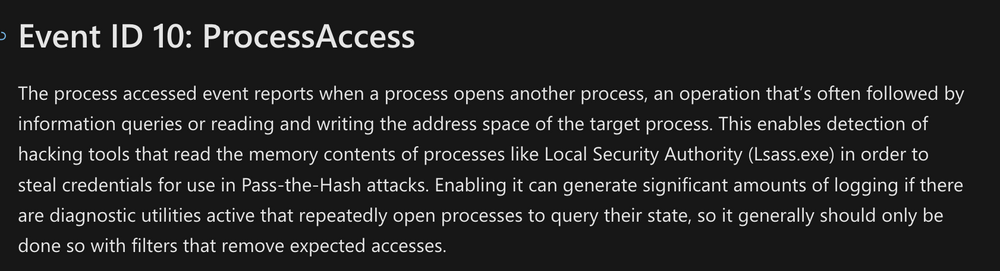
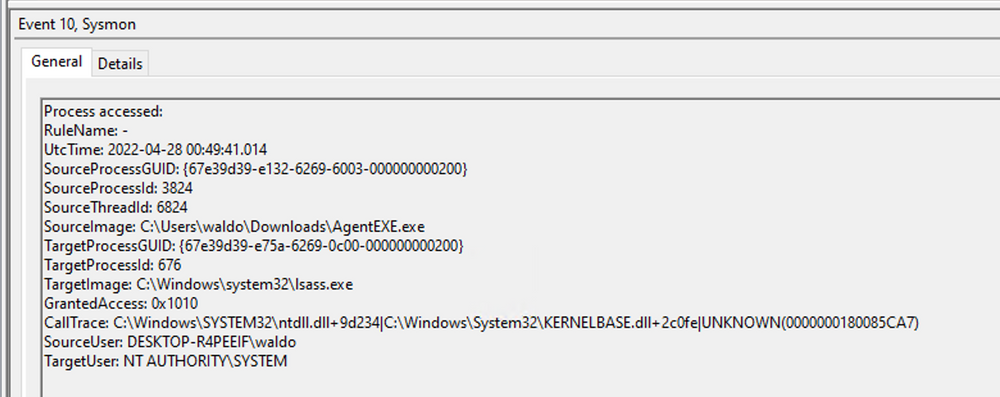
Some Indicators of Compromise (IOCs) to look for when hunting for credential dumping tools like Mimikatz targeting the LSASS process:
- Suspicious Origins: Unknown or random executables (e.g.,
AgentEXE) running from untrusted locations (e.g., theDownloadsfolder) attempting to access LSASS. - User Mismatch: The user initiating the action (
SourceUser) does not match the target context (TargetUser, typicallySYSTEM). - Privilege Escalation: The process requests
SeDebugPrivileges, a high-level debugging permission required by Mimikatz to interact with LSASS. - Legitimate Exceptions: Be aware of false positives; legitimate security software (AV/EDR) and normal authentication processes also require access to LSASS.
Additional Telemetry Sources
Event Tracing for Windows (ETW)
What is ETW?
Event Tracing for Windows (ETW) is a high-speed, deeply embedded logging and telemetry feature in the Windows operating system. It captures real-time activities from both user-level applications and the system kernel.
- By capturing a vast array of system behaviors (such as network activity, process creation, and registry modifications), ETW provides deeper visibility than traditional logs, making it invaluable for spotting anomalies and conducting forensic investigations.
- ETW relies on Event Providers, a specialized components within the OS, third-party apps, or custom-built software, to generate specific event logs, allowing for highly targeted monitoring.
- It is designed to be lightweight. Administrators can selectively enable specific providers to gather necessary security data without dragging down system performance.
- The data generated by ETW is easily retrieved, filtered, and analyzed using standard utilities like PowerShell (via the
Get-WinEventcmdlet) and Microsoft’s Message Analyzer.
ETW Architecture & Components
The underlying architecture and the key components of Event Tracing for Windows (ETW) are illustrated in the following diagram from Microsoft.
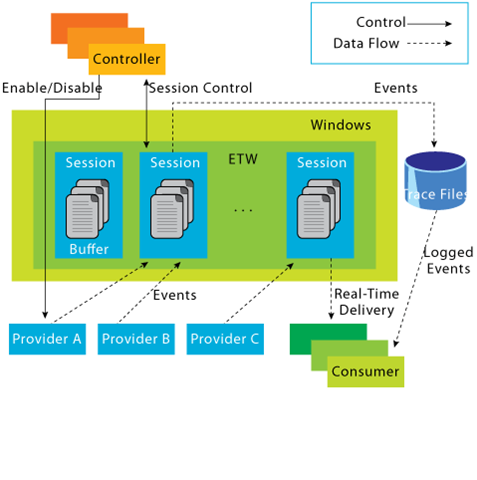
- Controllers: The managers of the ETW system (e.g., the built-in
logman.exe). They are responsible for starting and stopping trace sessions and deciding which event providers should be enabled or disabled. - Providers: The engines that actually generate the events from either user-mode applications or the kernel. To save system resources, high-volume providers stay disabled until a controller explicitly activates them. There are four main types:
- MOF: Uses predefined Managed Object Format schemas.
- WPP: Uses code macros, heavily utilized for low-level kernel debugging.
- Manifest-based: A modern approach using XML files to define event structures dynamically.
- TraceLogging: The newest, streamlined API that requires minimal code overhead.
- Consumers: The analysts of the system. Consumers subscribe to specific events to process and analyze them, often utilizing the Windows API.
- Channels: Logical filters that group events based on purpose or importance. Consumers subscribe to specific channels to get exactly what they need. (Note: An event must have a Channel property to be recorded in the standard event log).
- ETL Files (Event Trace Logs): The default storage mechanism. If events aren’t processed dynamically, they are written to disk as
.ETLfiles for long-term storage, offline analysis, and forensic investigations.
Interacting With ETW
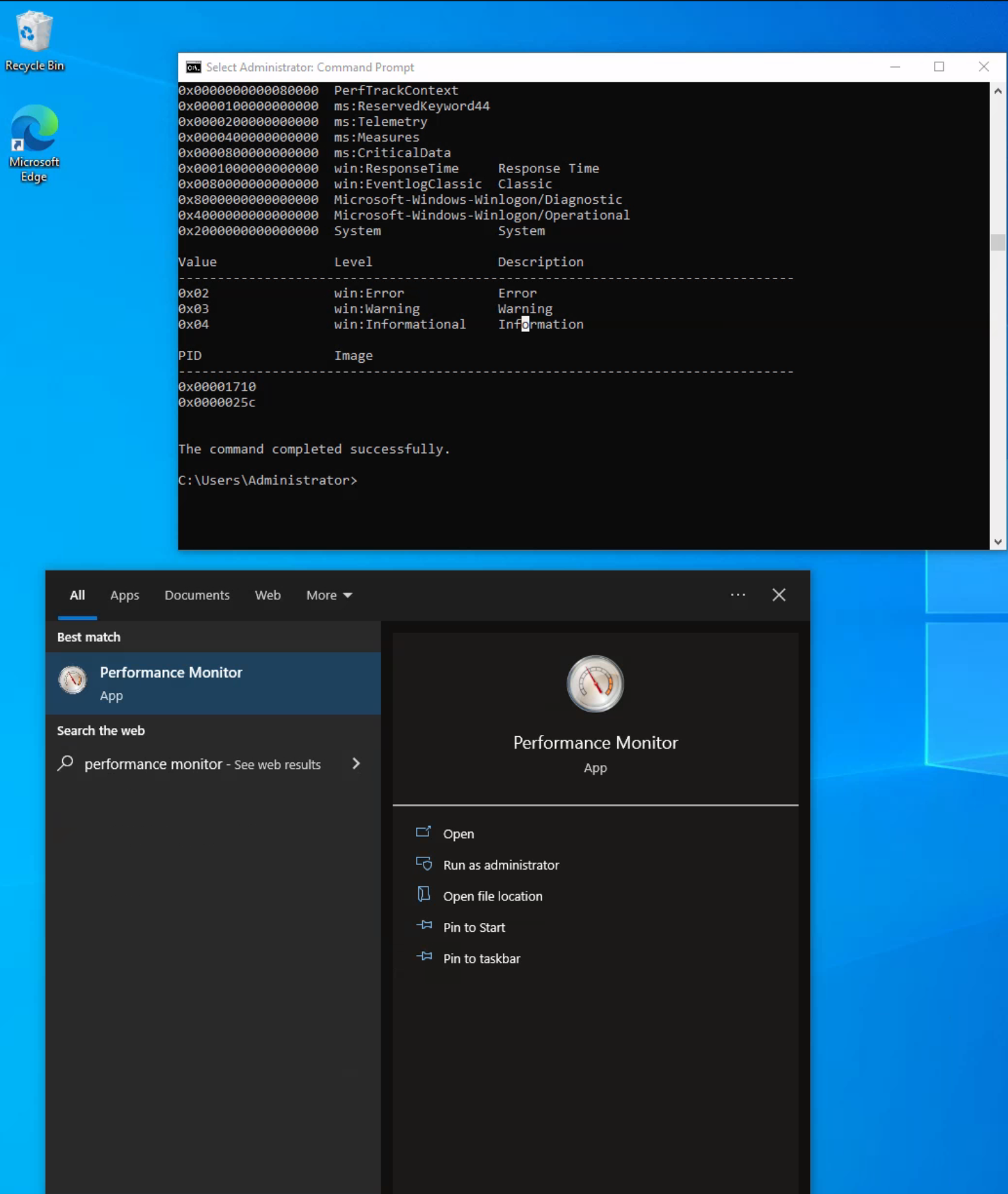
Logman (logman.exe) is a built-in Windows command-line tool used to manage ETW. It allows administrators and incident responders to create, start, stop, and investigate event tracing sessions and their associated providers.
- View Active Sessions (
logman query -ets): Lists all currently running system-wide trace sessions (e.g., Circular Kernel Context Logger, Sysmon). Theetsparameter is strictly required to query active Event Tracing Sessions. - Inspect a Specific Session (
logman query "SessionName" -ets): Reveals deep configuration details about a specific session, including log size limits, file paths, and a list of all providers currently subscribed to that session. It also shows the provider’s GUID, the event Level (e.g., warning, error, info), and Keywords (filters for specific event types). - List All Providers (
logman query providers): Displays every available ETW provider on the system and its unique GUID. Because Windows 10 has over 1,000 built-in providers (plus third-party ones), it is highly recommended to pipe this command intofindstr(e.g.,logman query providers | findstr "Winlogon") to find specific targets. - Inspect a Specific Provider (
logman query providers [Provider-Name]): Shows the internal metadata of a specific provider. This includes the specific keywords it uses to filter data, the event levels it supports, and the Process IDs (PIDs) currently interacting with it.
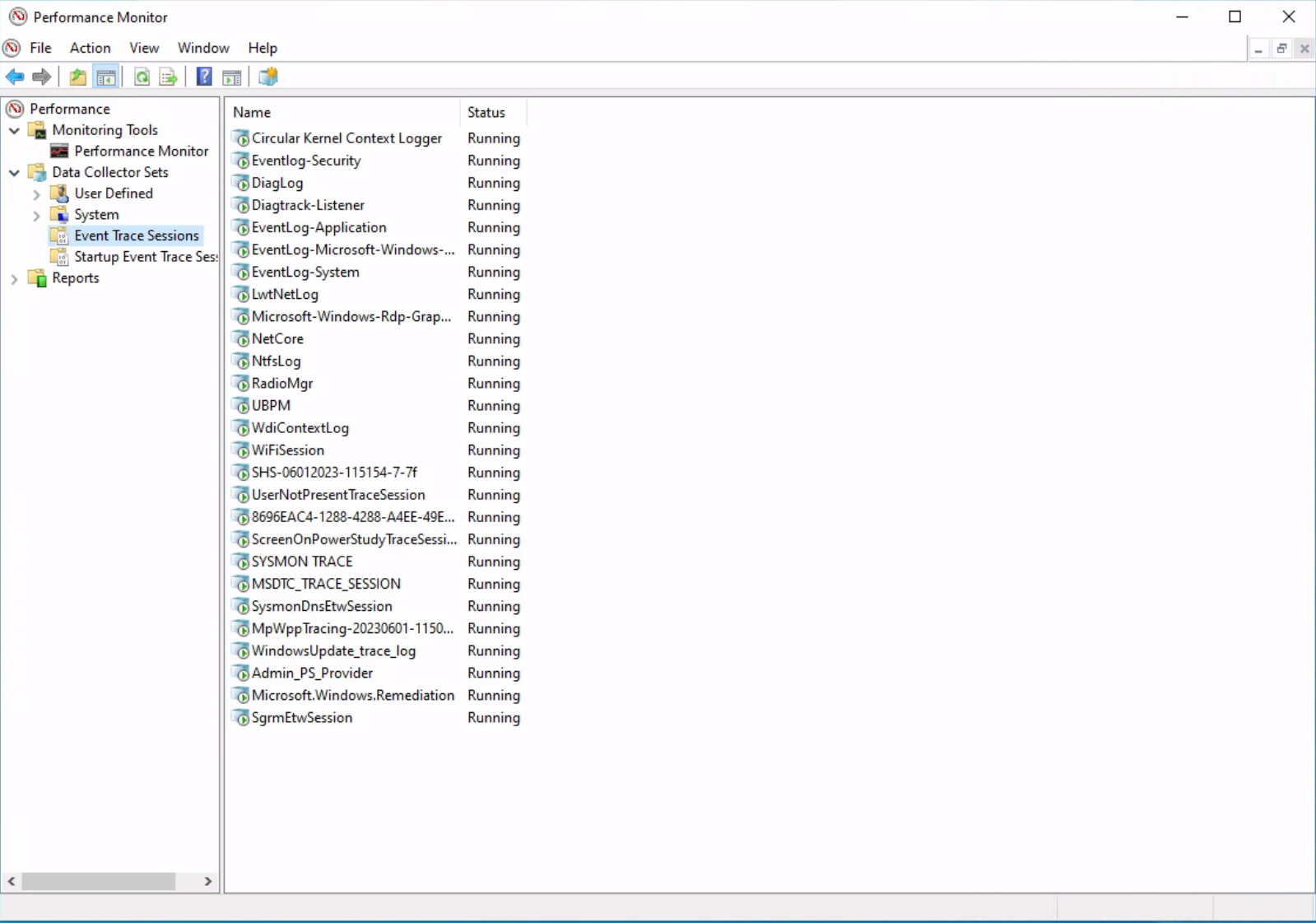
For those who prefer not to use the command line, ETW can also be managed visually:
- Performance Monitor: A built-in Windows tool that allows you to view, modify, and create custom trace sessions through a graphical interface.
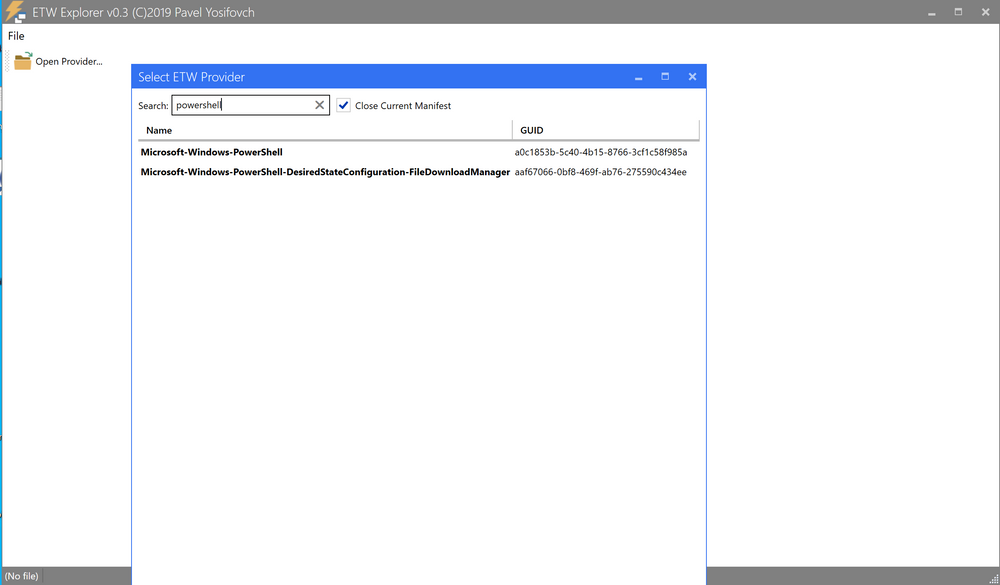
- EtwExplorer: A third-party project useful for viewing detailed ETW provider metadata.
Useful Providers
Core System & Kernel Visibility
These providers are your ground truth for low-level operating system behavior.
- Microsoft-Windows-Kernel-Process: Tracks process creation and manipulation. Crucial for spotting advanced evasion techniques like process injection or process hollowing.
- Microsoft-Windows-Kernel-File: Monitors file operations. Used to detect ransomware activity (mass encryption) or staging for data exfiltration.
- Microsoft-Windows-Kernel-Registry: Watches registry modifications. Essential for finding newly established persistence mechanisms or malicious configuration changes.
- Microsoft-Windows-Kernel-Network: Provides kernel-level network telemetry to spot reverse shells, command and control (C2) beacons, and general network-based attacks.
Network & Remote Access
These providers monitor the pathways attackers use to move through a network or establish remote access.
- Microsoft-Windows-SMBClient/SMBServer: Tracks Windows file-sharing traffic. Highly effective for spotting lateral movement (e.g., PsExec) or internal data exfiltration.
- WinRM: Monitors Windows Remote Management. Another prime indicator of lateral movement or unauthorized remote command execution.
- Microsoft-Windows-TerminalServices-LocalSessionManager: Logs remote desktop (RDP) sessions to identify suspicious or unauthorized logins.
- OpenSSH & Microsoft-Windows-VPN-Client: Tracks standard remote access methods. Useful for catching brute-force SSH attempts or rogue VPN connections.
- Microsoft-Windows-DNS-Client: Monitors domain name resolution. Vital for catching DNS tunneling or abnormal lookups associated with C2 infrastructure.
Execution & Application Layer
These providers watch the engines that actually execute code, making them prime targets for catching “living off the land” (LotL) techniques.
- Microsoft-Windows-PowerShell: An absolute must for tracking malicious scripting, heavily utilized for script block logging and spotting obfuscated commands.
- Microsoft-Windows-DotNETRuntime: Monitors .NET execution. Essential for catching malicious .NET assembly loading or memory-resident malware frameworks (like Cobalt Strike).
Security Controls & Antivirus
These providers monitor the health of the system’s defenses to tell you if an attacker is trying to blind your security tools.
- Microsoft-Windows-CodeIntegrity: Watches driver and code signatures to catch attackers attempting to load malicious or vulnerable (BYOVD) rootkit drivers.
- Microsoft-Windows-Security-Mitigations: Tracks the effectiveness of OS-level exploit protections to flag active bypass attempts.
- Microsoft-Antimalware-Service & Protection: Monitors the AV engine itself. Alerts you if an attacker disables real-time protection, alters scan exclusions, or employs AV-evasion tactics.
Restricted Providers
The Threat Intelligence Provider
The prime example is Microsoft-Windows-Threat-Intelligence. It is a high-value provider heavily utilized in Digital Forensics and Incident Response (DFIR) because it captures incredibly granular telemetry. This allows defenders to:
- Detect sophisticated attacks that bypass standard defenses (like Sysmon).
- Track the exact origin of a threat, its lateral movements, and the specific alterations it made to the system.
- Monitor activity in real-time to intervene before damage occurs.
Access Requirements (PPL & ELAM)
Because the data is so powerful, a process cannot simply request access to it. It must run as a Protected Process Light (PPL).
- The Official Route: Legitimate anti-malware vendors must go through a rigorous, non-trivial process with Microsoft. This involves signing legal documents, building an Early Launch Anti-Malware (ELAM) driver, passing a test suite, and obtaining a special Authenticode signature.
- The Unofficial Route: While the official barrier to entry is high, workarounds do exist that allow unauthorized access to this provider.
Tapping Into ETW
Detection Example 1: Detecting Strange Parent-Child Relationships
Detection Example 2: Detecting Malicious .NET Assembly Loading
Analyzing Windows Event Logs En Masse
Get-WinEvent
PowerShell’s Get-WinEvent cmdlet use in terminal to help us access all kind of log we just mention early.
Using Get-WinEvent
Running Get-WinEvent -ListLog * retrieves a complete, unfiltered list of all available event logs on the system.
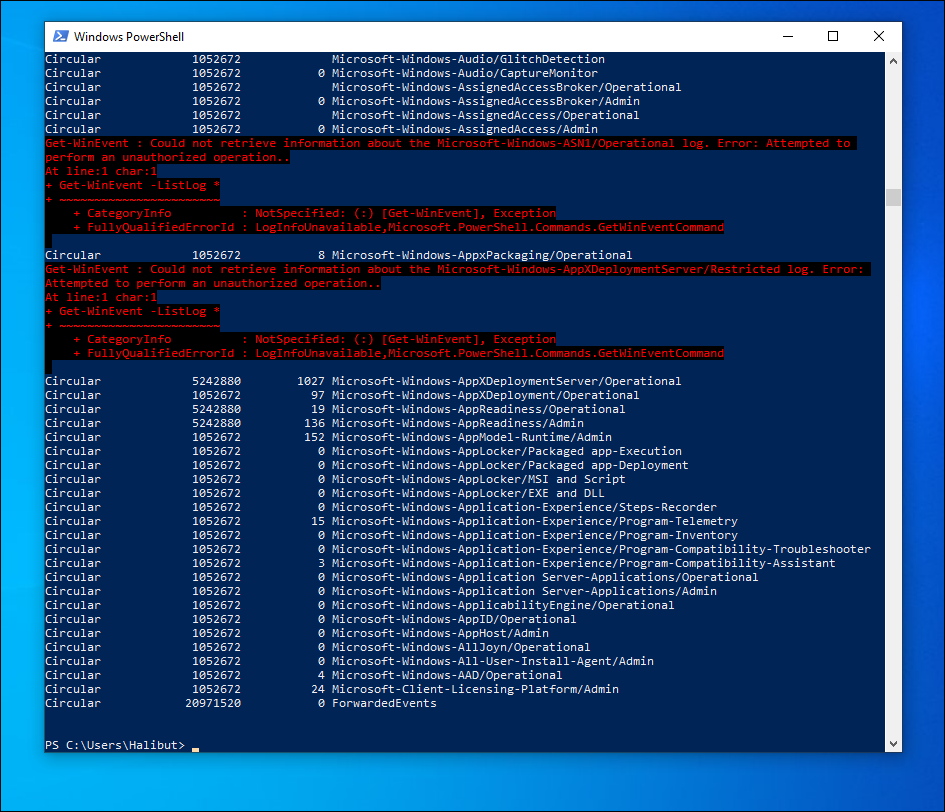
You can also use pipe | operator, Get-WinEvent command pass to Select-Object command:
1
2
3
4
5
6
7
8
9
10
11
12
13
14
15
16
17
18
19
20
21
22
23
24
25
26
27
28
29
30
31
32
33
34
35
36
37
38
39
40
PS C:\Users\Administrator> Get-WinEvent -ListLog * | Select-Object LogName, RecordCount, IsClassicLog, IsEnabled, LogMode, LogType | Format-Table -AutoSize

LogName                                                                                RecordCount IsClassicLog IsEnabled  LogMode        LogType
-------                                                                                ----------- ------------ ---------  -------        -------
Windows PowerShell                                                                            2916         True      True Circular Administrative
System                                                                                        1786         True      True Circular Administrative
Security                                                                                      8968         True      True Circular Administrative
Key Management Service                                                                           0         True      True Circular Administrative
Internet Explorer                                                                                0         True      True Circular Administrative
HardwareEvents                                                                                   0         True      True Circular Administrative
Application                                                                                   2079         True      True Circular Administrative
Windows Networking Vpn Plugin Platform/OperationalVerbose                                                 False     False Circular    Operational
Windows Networking Vpn Plugin Platform/Operational                                                        False     False Circular    Operational
SMSApi                                                                                           0        False      True Circular    Operational
Setup                                                                                           16        False      True Circular    Operational
OpenSSH/Operational                                                                              0        False      True Circular    Operational
OpenSSH/Admin                                                                                    0        False      True Circular Administrative
Network Isolation Operational                                                                             False     False Circular    Operational
Microsoft-WindowsPhone-Connectivity-WiFiConnSvc-Channel                                          0        False      True Circular    Operational
Microsoft-Windows-WWAN-SVC-Events/Operational                                                    0        False      True Circular    Operational
Microsoft-Windows-WPD-MTPClassDriver/Operational                                                 0        False      True Circular    Operational
Microsoft-Windows-WPD-CompositeClassDriver/Operational                                           0        False      True Circular    Operational
Microsoft-Windows-WPD-ClassInstaller/Operational                                                 0        False      True Circular    Operational
Microsoft-Windows-Workplace Join/Admin                                                           0        False      True Circular Administrative
Microsoft-Windows-WorkFolders/WHC                                                                0        False      True Circular    Operational
Microsoft-Windows-WorkFolders/Operational                                                        0        False      True Circular    Operational
Microsoft-Windows-Wordpad/Admin                                                                           False     False Circular    Operational
Microsoft-Windows-WMPNSS-Service/Operational                                                     0        False      True Circular    Operational
Microsoft-Windows-WMI-Activity/Operational                                                     895        False      True Circular    Operational
Microsoft-Windows-wmbclass/Trace                                                                          False     False Circular    Operational
Microsoft-Windows-WLAN-AutoConfig/Operational                                                    0        False      True Circular    Operational
Microsoft-Windows-Wired-AutoConfig/Operational                                                   0        False      True Circular    Operational
Microsoft-Windows-Winsock-WS2HELP/Operational                                                    0        False      True Circular    Operational
Microsoft-Windows-Winsock-NameResolution/Operational                                                      False     False Circular    Operational
Microsoft-Windows-Winsock-AFD/Operational                                                                 False     False Circular    Operational
Microsoft-Windows-WinRM/Operational                                                            230        False      True Circular    Operational
Microsoft-Windows-WinNat/Oper                                                                             False     False Circular    Operational
Microsoft-Windows-Winlogon/Operational                                                         648        False      True Circular    Operational
Microsoft-Windows-WinINet-Config/ProxyConfigChanged                                              2        False      True Circular    Operational
--- SNIP ---
we can explore the event log providers associated with each log using the -ListProvider parameter.
1
2
3
4
5
6
7
8
9
10
11
12
13
14
15
16
17
PS C:\Users\Administrator> Get-WinEvent -ListProvider * | Format-Table -AutoSize

Name                                                                       LogLinks
----                                                                       --------
PowerShell                                                                 {Windows PowerShell}
Workstation                                                                {System}
WMIxWDM                                                                    {System}
WinNat                                                                     {System}
Windows Script Host                                                        {System}
Microsoft-Windows-IME-OEDCompiler                                          {Microsoft-Windows-IME-OEDCompiler/Analytic}
Microsoft-Windows-DeviceSetupManager                                       {Microsoft-Windows-DeviceSetupManager/Operat...
Microsoft-Windows-Search-ProfileNotify                                     {Application}
Microsoft-Windows-Eventlog                                                 {System, Security, Setup, Microsoft-Windows-...
Microsoft-Windows-Containers-BindFlt                                       {Microsoft-Windows-Containers-BindFlt/Operat...
Microsoft-Windows-NDF-HelperClassDiscovery                                 {Microsoft-Windows-NDF-HelperClassDiscovery/...
Microsoft-Windows-FirstUX-PerfInstrumentation                              {FirstUXPerf-Analytic}
--- SNIP ---
At its most basic, Get-WinEvent retrieves event logs from local or remote computers.
#1 Retrieving events from the System log
1
2
3
4
5
6
7
8
9
10
11
12
13
14
15
16
17
18
19
20
21
22
23
24
25
26
PS C:\Users\Administrator> Get-WinEvent -LogName 'System' -MaxEvents 50 | Select-Object TimeCreated, ID, ProviderName, LevelDisplayName, Message | Format-Table -AutoSize

TimeCreated            Id ProviderName                             LevelDisplayName Message
-----------            -- ------------                             ---------------- -------
6/2/2023 9:41:42 AM    16 Microsoft-Windows-Kernel-General         Information      The access history in hive \??\C:\Users\Administrator\AppData\Local\Packages\MicrosoftWindows.Client.CBS_cw5...
6/2/2023 9:38:32 AM    16 Microsoft-Windows-Kernel-General         Information      The access history in hive \??\C:\Users\Administrator\AppData\Local\Packages\Microsoft.Windows.ShellExperien...
6/2/2023 9:38:32 AM 10016 Microsoft-Windows-DistributedCOM         Warning          The machine-default permission settings do not grant Local Activation permission for the COM Server applicat...
6/2/2023 9:37:31 AM    16 Microsoft-Windows-Kernel-General         Information      The access history in hive \??\C:\Users\Administrator\AppData\Local\Packages\Microsoft.WindowsAlarms_8wekyb3...
6/2/2023 9:37:31 AM    16 Microsoft-Windows-Kernel-General         Information      The access history in hive \??\C:\Users\Administrator\AppData\Local\Packages\microsoft.windowscommunications...
6/2/2023 9:37:31 AM    16 Microsoft-Windows-Kernel-General         Information      The access history in hive \??\C:\Users\Administrator\AppData\Local\Packages\Microsoft.Windows.ContentDelive...
6/2/2023 9:36:35 AM    16 Microsoft-Windows-Kernel-General         Information      The access history in hive \??\C:\Users\Administrator\AppData\Local\Packages\Microsoft.YourPhone_8wekyb3d8bb...
6/2/2023 9:36:32 AM    16 Microsoft-Windows-Kernel-General         Information      The access history in hive \??\C:\Users\Administrator\AppData\Local\Packages\Microsoft.AAD.BrokerPlugin_cw5n...
6/2/2023 9:36:30 AM    16 Microsoft-Windows-Kernel-General         Information      The access history in hive \??\C:\Users\Administrator\AppData\Local\Packages\Microsoft.Windows.Search_cw5n1h...
6/2/2023 9:36:29 AM    16 Microsoft-Windows-Kernel-General         Information      The access history in hive \??\C:\Users\Administrator\AppData\Local\Packages\Microsoft.Windows.StartMenuExpe...
6/2/2023 9:36:14 AM    16 Microsoft-Windows-Kernel-General         Information      The access history in hive \??\C:\Users\Administrator\AppData\Local\Microsoft\Windows\UsrClass.dat was clear...
6/2/2023 9:36:14 AM    16 Microsoft-Windows-Kernel-General         Information      The access history in hive \??\C:\Users\Administrator\ntuser.dat was cleared updating 2366 keys and creating...
6/2/2023 9:36:14 AM  7001 Microsoft-Windows-Winlogon               Information      User Logon Notification for Customer Experience Improvement Program
6/2/2023 9:33:04 AM    16 Microsoft-Windows-Kernel-General         Information      The access history in hive \??\C:\Windows\AppCompat\Programs\Amcache.hve was cleared updating 920 keys and c...
6/2/2023 9:31:54 AM    16 Microsoft-Windows-Kernel-General         Information      The access history in hive \??\C:\Windows\ServiceProfiles\NetworkService\AppData\Local\Microsoft\Windows\Del...
6/2/2023 9:30:23 AM    16 Microsoft-Windows-Kernel-General         Information      The access history in hive \??\C:\Windows\System32\config\COMPONENTS was cleared updating 54860 keys and cre...
6/2/2023 9:30:16 AM    15 Microsoft-Windows-Kernel-General         Information      Hive \SystemRoot\System32\config\DRIVERS was reorganized with a starting size of 3956736 bytes and an ending...
6/2/2023 9:30:10 AM  1014 Microsoft-Windows-DNS-Client             Warning          Name resolution for the name settings-win.data.microsoft.com timed out after none of the configured DNS serv...
6/2/2023 9:29:54 AM  7026 Service Control Manager                  Information      The following boot-start or system-start driver(s) did not load: ...
6/2/2023 9:29:54 AM 10148 Microsoft-Windows-WinRM                  Information      The WinRM service is listening for WS-Management requests. ...
6/2/2023 9:29:51 AM 51046 Microsoft-Windows-DHCPv6-Client          Information      DHCPv6 client service is started
--- SNIP ---
#2 Retrieving events from Microsoft-Windows-WinRM/Operational
1
2
3
4
5
6
7
8
9
10
PS C:\Users\Administrator> Get-WinEvent -LogName 'Microsoft-Windows-WinRM/Operational' -MaxEvents 30 | Select-Object TimeCreated, ID, ProviderName, LevelDisplayName, Message | Format-Table -AutoSize

TimeCreated            Id ProviderName            LevelDisplayName Message
-----------            -- ------------            ---------------- -------
6/2/2023 9:30:15 AM   132 Microsoft-Windows-WinRM Information      WSMan operation Enumeration completed successfully
6/2/2023 9:30:15 AM   145 Microsoft-Windows-WinRM Information      WSMan operation Enumeration started with resourceUri...
6/2/2023 9:30:15 AM   132 Microsoft-Windows-WinRM Information      WSMan operation Enumeration completed successfully
6/2/2023 9:30:15 AM   145 Microsoft-Windows-WinRM Information      WSMan operation Enumeration started with resourceUri...
6/2/2023 9:29:54 AM   209 Microsoft-Windows-WinRM Information      The Winrm service started successfully
--- SNIP ---
To retrieve the oldest events, instead of manually sorting the results, we can utilize the -Oldest parameter with the Get-WinEvent cmdlet. This parameter allows us to retrieve the first events based on their chronological order.
1
2
3
4
5
6
7
8
9
10
PS C:\Users\Administrator> Get-WinEvent -LogName 'Microsoft-Windows-WinRM/Operational' -Oldest -MaxEvents 30 | Select-Object TimeCreated, ID, ProviderName, LevelDisplayName, Message | Format-Table -AutoSize

TimeCreated           Id ProviderName            LevelDisplayName Message
-----------            -- ------------            ---------------- -------
8/3/2022 4:41:38 PM  145 Microsoft-Windows-WinRM Information      WSMan operation Enumeration started with resourceUri ...
8/3/2022 4:41:42 PM  254 Microsoft-Windows-WinRM Information      Activity Transfer
8/3/2022 4:41:42 PM  161 Microsoft-Windows-WinRM Error            The client cannot connect to the destination specifie...
8/3/2022 4:41:42 PM  142 Microsoft-Windows-WinRM Error            WSMan operation Enumeration failed, error code 215085...
8/3/2022 9:51:03 AM  145 Microsoft-Windows-WinRM Information      WSMan operation Enumeration started with resourceUri ...
8/3/2022 9:51:07 AM  254 Microsoft-Windows-WinRM Information      Activity Transfer
#3 Retrieving events from .evtx Files
If you have an exported .evtx file from another computer or you have backed up an existing log, you can utilize the Get-WinEvent cmdlet to read and query those logs. This capability is particularly useful for auditing purposes or when you need to analyze logs within scripts.
To retrieve log entries from a .evtx file, you need to provide the log file’s path using the -Path parameter. The example below demonstrates how to read events from the ‘C:\Tools\chainsaw\EVTX-ATTACK-SAMPLES\Execution\exec_sysmon_1_lolbin_pcalua.evtx’ file, which represents an exported Windows PowerShell log.
1
2
3
4
5
6
7
PS C:\Users\Administrator> Get-WinEvent -Path 'C:\Tools\chainsaw\EVTX-ATTACK-SAMPLES\Execution\exec_sysmon_1_lolbin_pcalua.evtx' -MaxEvents 5 | Select-Object TimeCreated, ID, ProviderName, LevelDisplayName, Message | Format-Table -AutoSize

TimeCreated           Id ProviderName             LevelDisplayName Message
-----------           -- ------------             ---------------- -------
5/12/2019 10:01:51 AM  1 Microsoft-Windows-Sysmon Information      Process Create:...
5/12/2019 10:01:50 AM  1 Microsoft-Windows-Sysmon Information      Process Create:...
5/12/2019 10:01:43 AM  1 Microsoft-Windows-Sysmon Information      Process Create:...
By specifying the path of the log file using the -Path parameter, we can retrieve events from that specific file. The command selects relevant properties and formats the output for easier analysis, displaying the event’s creation time, ID, provider name, level display name, and message.
#4 Filtering events with FilterHashtable
To filter Windows event logs, we can use the -FilterHashtable parameter, which enables us to define specific conditions for the logs we want to retrieve.
1
2
3
4
5
6
7
8
9
10
11
12
PS C:\Users\Administrator> Get-WinEvent -FilterHashtable @{LogName='Microsoft-Windows-Sysmon/Operational'; ID=1,3} | Select-Object TimeCreated, ID, ProviderName, LevelDisplayName, Message | Format-Table -AutoSize

TimeCreated           Id ProviderName             LevelDisplayName Message
-----------           -- ------------             ---------------- -------
6/2/2023 10:40:09 AM   1 Microsoft-Windows-Sysmon Information      Process Create:...
6/2/2023 10:39:01 AM   1 Microsoft-Windows-Sysmon Information      Process Create:...
6/2/2023 10:34:12 AM   1 Microsoft-Windows-Sysmon Information      Process Create:...
6/2/2023 10:33:26 AM   1 Microsoft-Windows-Sysmon Information      Process Create:...
6/2/2023 10:33:16 AM   1 Microsoft-Windows-Sysmon Information      Process Create:...
6/2/2023 9:36:10 AM    3 Microsoft-Windows-Sysmon Information      Network connection detected:...
5/29/2023 6:30:26 PM   1 Microsoft-Windows-Sysmon Information      Process Create:...
5/29/2023 6:30:24 PM   3 Microsoft-Windows-Sysmon Information      Network connection detected:...
The command above retrieves events with IDs 1 and 3 from the Microsoft-Windows-Sysmon/Operational event log, selects specific properties from those events, and displays them in a table format.
Note: If we observe Sysmon event IDs 1 and 3 (related to “dangerous” or uncommon binaries) occurring within a short time frame, it could potentially indicate the presence of a process communicating with a Command and Control (C2) server.
For exported events the equivalent command is the following.
1
2
3
4
5
6
7
PS C:\Users\Administrator> Get-WinEvent -FilterHashtable @{Path='C:\Tools\chainsaw\EVTX-ATTACK-SAMPLES\Execution\sysmon_mshta_sharpshooter_stageless_meterpreter.evtx'; ID=1,3} | Select-Object TimeCreated, ID, ProviderName, LevelDisplayName, Message | Format-Table -AutoSize

TimeCreated           Id ProviderName             LevelDisplayName Message
-----------           -- ------------             ---------------- -------
6/15/2019 12:14:32 AM  1 Microsoft-Windows-Sysmon Information      Process Create:...
6/15/2019 12:13:44 AM  3 Microsoft-Windows-Sysmon Information      Network connection detected:...
6/15/2019 12:13:42 AM  1 Microsoft-Windows-Sysmon Information      Process Create:...
Note: These logs are related to a process communicating with a Command and Control (C2) server right after it was created.
If we want the get event logs based on a date range (5/28/23 - 6/2/2023), this can be done as follows.
1
2
3
4
5
6
7
8
9
10
11
12
13
14
15
 PS C:\Users\Administrator> $startDate = (Get-Date -Year 2023 -Month 5 -Day 28).Date
 PS C:\Users\Administrator> $endDate   = (Get-Date -Year 2023 -Month 6 -Day 3).Date
 PS C:\Users\Administrator> Get-WinEvent -FilterHashtable @{LogName='Microsoft-Windows-Sysmon/Operational'; ID=1,3; StartTime=$startDate; EndTime=$endDate} | Select-Object TimeCreated, ID, ProviderName, LevelDisplayName, Message | Format-Table -AutoSize

 TimeCreated           Id ProviderName             LevelDisplayName Message
-----------           -- ------------             ---------------- -------
6/2/2023 3:26:56 PM    1 Microsoft-Windows-Sysmon Information      Process Create:...
6/2/2023 3:25:20 PM    1 Microsoft-Windows-Sysmon Information      Process Create:...
6/2/2023 3:25:20 PM    1 Microsoft-Windows-Sysmon Information      Process Create:...
6/2/2023 3:24:13 PM    1 Microsoft-Windows-Sysmon Information      Process Create:...
6/2/2023 3:24:13 PM    1 Microsoft-Windows-Sysmon Information      Process Create:...
6/2/2023 3:23:41 PM    1 Microsoft-Windows-Sysmon Information      Process Create:...
6/2/2023 3:20:27 PM    1 Microsoft-Windows-Sysmon Information      Process Create:...
6/2/2023 3:20:26 PM    1 Microsoft-Windows-Sysmon Information      Process Create:...
--- SNIP ---
Note: The above will filter between the start date inclusive and the end date exclusive. That’s why we specified June 3rd and not 2nd.
#5 Filtering events with FilterHashtable & XML
Consider an intrusion detection scenario where a suspicious network connection to a particular IP (52.113.194.132) has been identified. With Sysmon installed, you can use Event ID 3 (Network Connection) logs to investigate the potential threat.
1
2
3
4
5
6
7
8
9
10
11
12
13
14
15
16
PS C:\Users\Administrator> Get-WinEvent -FilterHashtable @{LogName='Microsoft-Windows-Sysmon/Operational'; ID=3} |
`ForEach-Object {
$xml = [xml]$_.ToXml()
$eventData = $xml.Event.EventData.Data
New-Object PSObject -Property @{
    SourceIP = $eventData | Where-Object {$_.Name -eq "SourceIp"} | Select-Object -ExpandProperty '#text'
    DestinationIP = $eventData | Where-Object {$_.Name -eq "DestinationIp"} | Select-Object -ExpandProperty '#text'
    ProcessGuid = $eventData | Where-Object {$_.Name -eq "ProcessGuid"} | Select-Object -ExpandProperty '#text'
    ProcessId = $eventData | Where-Object {$_.Name -eq "ProcessId"} | Select-Object -ExpandProperty '#text'
}
}  | Where-Object {$_.DestinationIP -eq "52.113.194.132"}

DestinationIP  ProcessId SourceIP       ProcessGuid
-------------  --------- --------       -----------
52.113.194.132 9196      10.129.205.123 {52ff3419-51ad-6475-1201-000000000e00}
52.113.194.132 5996      10.129.203.180 {52ff3419-54f3-6474-3d03-000000000c00}
This script will retrieve all Sysmon network connection events (ID 3), parse the XML data for each event to retrieve specific details (source IP, destination IP, Process GUID, and Process ID), and filter the results to include only events where the destination IP matches the suspected IP.
Further, we can use the ProcessGuid to trace back the original process that made the connection, enabling us to understand the process tree and identify any malicious executables or scripts.
You might wonder how we could have been aware of Event.EventData.Data. The Windows XML EventLog (EVTX) format can be found here.
In the “Tapping Into ETW” section we were looking for anomalous clr.dll and mscoree.dll loading activity in processes that ordinarily wouldn’t require them. The command below is leveraging Sysmon’s Event ID 7 to detect the loading of abovementioned DLLs.
1
2
3
4
5
6
7
8
9
10
11
12
13
14
15
16
17
18
19
20
21
22
23
24
25
26
27
28
29
30
31
32
33
34
35
36
37
38
39
40
41
42
43
44
45
PS C:\Users\Administrator> $Query = @"
	<QueryList>
		<Query Id="0">
			<Select Path="Microsoft-Windows-Sysmon/Operational">*[System[(EventID=7)]] and *[EventData[Data='mscoree.dll']] or *[EventData[Data='clr.dll']]
			</Select>
		</Query>
	</QueryList>
	"@
PS C:\Users\Administrator> Get-WinEvent -FilterXml $Query | ForEach-Object {Write-Host $_.Message `n}
Image loaded:
RuleName: -
UtcTime: 2023-06-05 22:23:16.560
ProcessGuid: {52ff3419-6054-647e-aa02-000000001000}
ProcessId: 2936
Image: C:\Tools\GhostPack Compiled Binaries\Seatbelt.exe
ImageLoaded: C:\Windows\Microsoft.NET\Framework64\v4.0.30319\clr.dll
FileVersion: 4.8.4515.0 built by: NET48REL1LAST_C
Description: Microsoft .NET Runtime Common Language Runtime - 	WorkStation
Product: Microsoft® .NET Framework
Company: Microsoft Corporation
OriginalFileName: clr.dll
Hashes: MD5=2B0E5597FF51A3A4D5BB2DDAB0214531,SHA256=8D09CE35C987EADCF01686BB559920951B0116985FE4FEB5A488A6A8F7C4BDB9,IMPHASH=259C196C67C4E02F941CAD54D9D9BB8A
Signed: true
Signature: Microsoft Corporation
SignatureStatus: Valid
User: DESKTOP-NU10MTO\Administrator

Image loaded:
RuleName: -
UtcTime: 2023-06-05 22:23:16.544
ProcessGuid: {52ff3419-6054-647e-aa02-000000001000}
ProcessId: 2936
Image: C:\Tools\GhostPack Compiled Binaries\Seatbelt.exe
ImageLoaded: C:\Windows\System32\mscoree.dll
FileVersion: 10.0.19041.1 (WinBuild.160101.0800)
Description: Microsoft .NET Runtime Execution Engine
Product: Microsoft® Windows® Operating System
Company: Microsoft Corporation
OriginalFileName: mscoree.dll
Hashes: MD5=D5971EF71DE1BDD46D537203ABFCC756,SHA256=8828DE042D008783BA5B31C82935A3ED38D5996927C3399B3E1FC6FE723FC84E,IMPHASH=65F23EFA1EB51A5DAAB399BFAA840074
Signed: true
Signature: Microsoft Windows
SignatureStatus: Valid
User: DESKTOP-NU10MTO\Administrator
--- SNIP ---
#6 Filtering events with FilterXPath
To use XPath queries with Get-WinEvent, we need to use the -FilterXPath parameter. This allows us to craft an XPath query to filter the event logs.
For instance, if we want to get Process Creation (Sysmon Event ID 1) events in the Sysmon log to identify installation of any Sysinternals tool we can use the command below.
Note: During the installation of a Sysinternals tool the user must accept the presented EULA. The acceptance action involves the registry key included in the command below.
1
2
3
4
5
6
 PS C:\Users\Administrator> Get-WinEvent -LogName 'Microsoft-Windows-Sysmon/Operational' -FilterXPath "*[EventData[Data[@Name='Image']='C:\Windows\System32\reg.exe']] and *[EventData[Data[@Name='CommandLine']='`"C:\Windows\system32\reg.exe`" ADD HKCU\Software\Sysinternals /v EulaAccepted /t REG_DWORD /d 1 /f']]" | Select-Object TimeCreated, ID, ProviderName, LevelDisplayName, Message | Format-Table -AutoSize

 TimeCreated           Id ProviderName             LevelDisplayName Message
-----------           -- ------------             ---------------- -------
5/29/2023 12:44:46 AM  1 Microsoft-Windows-Sysmon Information      Process Create:...
5/29/2023 12:29:53 AM  1 Microsoft-Windows-Sysmon Information      Process Create:...
Note: Image and CommandLine can be identified by browsing the XML representation of any Sysmon event with ID 1 through, for example, Event Viewer.
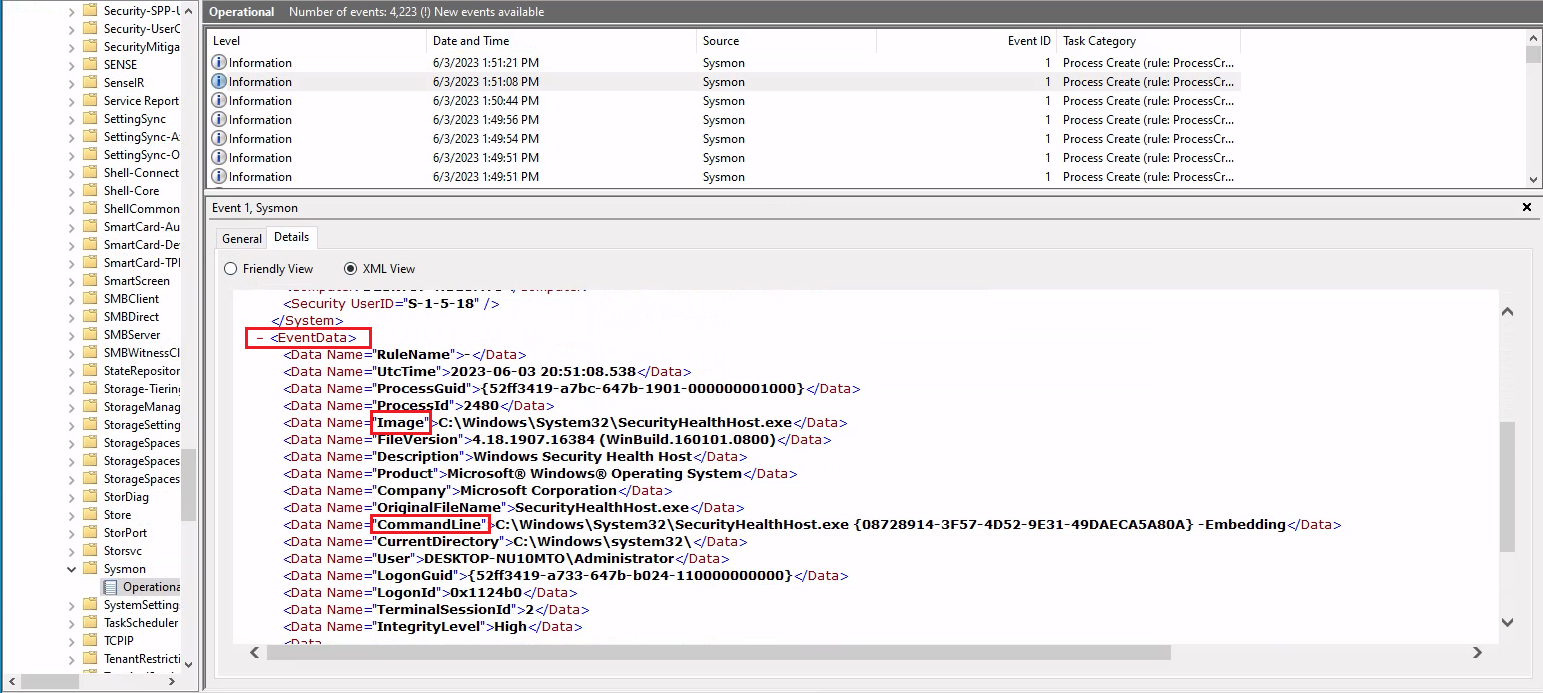
Lastly, suppose we want to investigate any network connections to a particular suspicious IP address (52.113.194.132) that Sysmon has logged. To do that we could use the following command.
1
2
3
4
5
6
7
8
PS C:\Users\Administrator> Get-WinEvent -LogName 'Microsoft-Windows-Sysmon/Operational' -FilterXPath "*[System[EventID=3] and EventData[Data[@Name='DestinationIp']='52.113.194.132']]"

ProviderName: Microsoft-Windows-Sysmon

TimeCreated                      Id LevelDisplayName Message
-----------                      -- ---------------- -------
5/29/2023 6:30:24 PM              3 Information      Network connection detected:...
5/29/2023 12:32:05 AM             3 Information      Network connection detected:...
#7 Filtering events based on property values
The -Property * parameter, when used with Select-Object, instructs the command to select all properties of the objects passed to it. In the context of the Get-WinEvent command, these properties will include all available information about the event. Let’s see an example that will present us with all properties of Sysmon event ID 1 logs.
1
2
3
4
5
6
7
8
9
10
11
12
13
14
15
16
17
18
19
20
21
22
23
24
25
26
27
28
29
30
31
32
33
34
35
36
37
38
39
40
41
42
43
44
45
46
47
48
49
50
51
52
53
54
55
56
PS C:\Users\Administrator> Get-WinEvent -FilterHashtable @{LogName='Microsoft-Windows-Sysmon/Operational'; ID=1} -MaxEvents 1 | Select-Object -Property *

Message            : Process Create:
                   RuleName: -
                   UtcTime: 2023-06-03 01:24:25.104
                   ProcessGuid: {52ff3419-9649-647a-1902-000000001000}
                   ProcessId: 1036
                   Image: C:\Windows\System32\taskhostw.exe
                   FileVersion: 10.0.19041.1806 (WinBuild.160101.0800)
                   Description: Host Process for Windows Tasks
                   Product: Microsoft® Windows® Operating System
                   Company: Microsoft Corporation
                   OriginalFileName: taskhostw.exe
                   CommandLine: taskhostw.exe -RegisterDevice -ProtectionStateChanged -FreeNetworkOnly
                   CurrentDirectory: C:\Windows\system32\
                   User: NT AUTHORITY\SYSTEM
                   LogonGuid: {52ff3419-85d0-647a-e703-000000000000}
                   LogonId: 0x3E7
                   TerminalSessionId: 0
                   IntegrityLevel: System
                   Hashes: MD5=C7B722B96F3969EACAE9FA205FAF7EF0,SHA256=76D3D02B265FA5768294549C938D3D9543CC9FEF6927
                   4728E0A72E3FCC335366,IMPHASH=3A0C6863CDE566AF997DB2DEFFF9D924
                   ParentProcessGuid: {00000000-0000-0000-0000-000000000000}
                   ParentProcessId: 1664
                   ParentImage: -
                   ParentCommandLine: -
                   ParentUser: -
Id                   : 1
Version              : 5
Qualifiers           :
Level                : 4
Task                 : 1
Opcode               : 0
Keywords             : -9223372036854775808
RecordId             : 32836
ProviderName         : Microsoft-Windows-Sysmon
ProviderId           : 5770385f-c22a-43e0-bf4c-06f5698ffbd9
LogName              : Microsoft-Windows-Sysmon/Operational
ProcessId            : 2900
ThreadId             : 2436
MachineName          : DESKTOP-NU10MTO
UserId               : S-1-5-18
TimeCreated          : 6/2/2023 6:24:25 PM
ActivityId           :
RelatedActivityId    :
ContainerLog         : Microsoft-Windows-Sysmon/Operational
MatchedQueryIds      : {}
Bookmark             : 		System.Diagnostics.Eventing.Reader.EventBookmark
LevelDisplayName     : Information
OpcodeDisplayName    : Info
TaskDisplayName      : Process Create (rule: ProcessCreate)
KeywordsDisplayNames : {}
Properties           : {System.Diagnostics.Eventing.Reader.EventProperty,
                   System.Diagnostics.Eventing.Reader.EventProperty,
                   System.Diagnostics.Eventing.Reader.EventProperty,
                   System.Diagnostics.Eventing.Reader.EventProperty...}
Let’s now see an example of a command that retrieves Process Create events from the Microsoft-Windows-Sysmon/Operational log, checks the parent command line of each event for the string -enc, and then displays all properties of any matching events as a list.
1
2
3
4
5
6
7
8
9
10
11
12
13
14
15
16
17
18
19
20
21
22
23
24
25
26
27
28
29
30
31
32
33
34
35
36
37
38
39
40
41
42
43
44
45
46
47
48
49
50
51
52
53
54
55
56
57
58
59
60
61
62
63
64
65
66
67
68
69
70
71
72
73
74
75
76
77
78
79
80
81
82
83
84
85
86
PS C:\Users\Administrator> Get-WinEvent -FilterHashtable @{LogName='Microsoft-Windows-Sysmon/Operational'; ID=1} | Where-Object {$_.Properties[21].Value -like "*-enc*"} | Format-List

TimeCreated  : 5/29/2023 12:44:58 AM
ProviderName : Microsoft-Windows-Sysmon
Id           : 1
Message      : Process Create:
           RuleName: -
           UtcTime: 2023-05-29 07:44:58.467
           ProcessGuid: {52ff3419-57fa-6474-7005-000000000c00}
           ProcessId: 2660
           Image: C:\Windows\Microsoft.NET\Framework64\v4.0.30319\csc.exe
           FileVersion: 4.8.4084.0 built by: NET48REL1           Description: Visual C# Command Line Compiler
           Product: Microsoft® .NET Framework
           Company: Microsoft Corporation
           OriginalFileName: csc.exe
           CommandLine: "C:\Windows\Microsoft.NET\Framework64\v4.0.30319\csc.exe" /noconfig /fullpaths
           @"C:\Users\ADMINI~1\AppData\Local\Temp\z5erlc11.cmdline"
           CurrentDirectory: C:\Users\Administrator\
           User: DESKTOP-NU10MTO\Administrator
           LogonGuid: {52ff3419-57f9-6474-8071-510000000000}
           LogonId: 0x517180
           TerminalSessionId: 0
           IntegrityLevel: High
           Hashes: MD5=F65B029562077B648A6A5F6A1AA76A66,SHA256=4A6D0864E19C0368A47217C129B075DDDF61A6A262388F9D2104
           5D82F3423ED7,IMPHASH=EE1E569AD02AA1F7AECA80AC0601D80D
           ParentProcessGuid: {52ff3419-57f9-6474-6e05-000000000c00}
           ParentProcessId: 5840
           ParentImage: C:\Windows\System32\WindowsPowerShell\v1.0\powershell.exe
           ParentCommandLine: "C:\Windows\System32\WindowsPowerShell\v1.0\powershell.exe" -NoProfile
           -NonInteractive -ExecutionPolicy Unrestricted -EncodedCommand JgBjAGgAYwBwAC4AYwBvAG0AIAA2ADUAMAAwADEAIA
           A+ACAAJABuAHUAbABsAAoAaQBmACAAKAAkAFAAUwBWAGUAcgBzAGkAbwBuAFQAYQBiAGwAZQAuAFAAUwBWAGUAcgBzAGkAbwBuACAALQ
           BsAHQAIABbAFYAZQByAHMAaQBvAG4AXQAiADMALgAwACIAKQAgAHsACgAnAHsAIgBmAGEAaQBsAGUAZAAiADoAdAByAHUAZQAsACIAbQ
           BzAGcAIgA6ACIAQQBuAHMAaQBiAGwAZQAgAHIAZQBxAHUAaQByAGUAcwAgAFAAbwB3AGUAcgBTAGgAZQBsAGwAIAB2ADMALgAwACAAbw
           ByACAAbgBlAHcAZQByACIAfQAnAAoAZQB4AGkAdAAgADEACgB9AAoAJABlAHgAZQBjAF8AdwByAGEAcABwAGUAcgBfAHMAdAByACAAPQ
           AgACQAaQBuAHAAdQB0ACAAfAAgAE8AdQB0AC0AUwB0AHIAaQBuAGcACgAkAHMAcABsAGkAdABfAHAAYQByAHQAcwAgAD0AIAAkAGUAeA
           BlAGMAXwB3AHIAYQBwAHAAZQByAF8AcwB0AHIALgBTAHAAbABpAHQAKABAACgAIgBgADAAYAAwAGAAMABgADAAIgApACwAIAAyACwAIA
           BbAFMAdAByAGkAbgBnAFMAcABsAGkAdABPAHAAdABpAG8AbgBzAF0AOgA6AFIAZQBtAG8AdgBlAEUAbQBwAHQAeQBFAG4AdAByAGkAZQ
           BzACkACgBJAGYAIAAoAC0AbgBvAHQAIAAkAHMAcABsAGkAdABfAHAAYQByAHQAcwAuAEwAZQBuAGcAdABoACAALQBlAHEAIAAyACkAIA
           B7ACAAdABoAHIAbwB3ACAAIgBpAG4AdgBhAGwAaQBkACAAcABhAHkAbABvAGEAZAAiACAAfQAKAFMAZQB0AC0AVgBhAHIAaQBhAGIAbA
           BlACAALQBOAGEAbQBlACAAagBzAG8AbgBfAHIAYQB3ACAALQBWAGEAbAB1AGUAIAAkAHMAcABsAGkAdABfAHAAYQByAHQAcwBbADEAXQ
           AKACQAZQB4AGUAYwBfAHcAcgBhAHAAcABlAHIAIAA9ACAAWwBTAGMAcgBpAHAAdABCAGwAbwBjAGsAXQA6ADoAQwByAGUAYQB0AGUAKA
           AkAHMAcABsAGkAdABfAHAAYQByAHQAcwBbADAAXQApAAoAJgAkAGUAeABlAGMAXwB3AHIAYQBwAHAAZQByAA==
           ParentUser: DESKTOP-NU10MTO\Administrator

TimeCreated  : 5/29/2023 12:44:57 AM
ProviderName : Microsoft-Windows-Sysmon
Id           : 1
Message      : Process Create:
           RuleName: -
           UtcTime: 2023-05-29 07:44:57.919
           ProcessGuid: {52ff3419-57f9-6474-6f05-000000000c00}
           ProcessId: 3060
           Image: C:\Windows\System32\chcp.com
           FileVersion: 10.0.19041.1806 (WinBuild.160101.0800)
           Description: Change CodePage Utility
           Product: Microsoft® Windows® Operating System
           Company: Microsoft Corporation
           OriginalFileName: CHCP.COM
           CommandLine: "C:\Windows\system32\chcp.com" 65001
           CurrentDirectory: C:\Users\Administrator\
           User: DESKTOP-NU10MTO\Administrator
           LogonGuid: {52ff3419-57f9-6474-8071-510000000000}
           LogonId: 0x517180
           TerminalSessionId: 0
           IntegrityLevel: High
           Hashes: MD5=33395C4732A49065EA72590B14B64F32,SHA256=025622772AFB1486F4F7000B70CC51A20A640474D6E4DBE95A70
           BEB3FD53AD40,IMPHASH=75FA51C548B19C4AD5051FAB7D57EB56
           ParentProcessGuid: {52ff3419-57f9-6474-6e05-000000000c00}
           ParentProcessId: 5840
           ParentImage: C:\Windows\System32\WindowsPowerShell\v1.0\powershell.exe
           ParentCommandLine: "C:\Windows\System32\WindowsPowerShell\v1.0\powershell.exe" -NoProfile
           -NonInteractive -ExecutionPolicy Unrestricted -EncodedCommand JgBjAGgAYwBwAC4AYwBvAG0AIAA2ADUAMAAwADEAIA
           A+ACAAJABuAHUAbABsAAoAaQBmACAAKAAkAFAAUwBWAGUAcgBzAGkAbwBuAFQAYQBiAGwAZQAuAFAAUwBWAGUAcgBzAGkAbwBuACAALQ
           BsAHQAIABbAFYAZQByAHMAaQBvAG4AXQAiADMALgAwACIAKQAgAHsACgAnAHsAIgBmAGEAaQBsAGUAZAAiADoAdAByAHUAZQAsACIAbQ
           BzAGcAIgA6ACIAQQBuAHMAaQBiAGwAZQAgAHIAZQBxAHUAaQByAGUAcwAgAFAAbwB3AGUAcgBTAGgAZQBsAGwAIAB2ADMALgAwACAAbw
           ByACAAbgBlAHcAZQByACIAfQAnAAoAZQB4AGkAdAAgADEACgB9AAoAJABlAHgAZQBjAF8AdwByAGEAcABwAGUAcgBfAHMAdAByACAAPQ
           AgACQAaQBuAHAAdQB0ACAAfAAgAE8AdQB0AC0AUwB0AHIAaQBuAGcACgAkAHMAcABsAGkAdABfAHAAYQByAHQAcwAgAD0AIAAkAGUAeA
           BlAGMAXwB3AHIAYQBwAHAAZQByAF8AcwB0AHIALgBTAHAAbABpAHQAKABAACgAIgBgADAAYAAwAGAAMABgADAAIgApACwAIAAyACwAIA
           BbAFMAdAByAGkAbgBnAFMAcABsAGkAdABPAHAAdABpAG8AbgBzAF0AOgA6AFIAZQBtAG8AdgBlAEUAbQBwAHQAeQBFAG4AdAByAGkAZQ
           BzACkACgBJAGYAIAAoAC0AbgBvAHQAIAAkAHMAcABsAGkAdABfAHAAYQByAHQAcwAuAEwAZQBuAGcAdABoACAALQBlAHEAIAAyACkAIA
           B7ACAAdABoAHIAbwB3ACAAIgBpAG4AdgBhAGwAaQBkACAAcABhAHkAbABvAGEAZAAiACAAfQAKAFMAZQB0AC0AVgBhAHIAaQBhAGIAbA
           BlACAALQBOAGEAbQBlACAAagBzAG8AbgBfAHIAYQB3ACAALQBWAGEAbAB1AGUAIAAkAHMAcABsAGkAdABfAHAAYQByAHQAcwBbADEAXQ
           AKACQAZQB4AGUAYwBfAHcAcgBhAHAAcABlAHIAIAA9ACAAWwBTAGMAcgBpAHAAdABCAGwAbwBjAGsAXQA6ADoAQwByAGUAYQB0AGUAKA
           AkAHMAcABsAGkAdABfAHAAYQByAHQAcwBbADAAXQApAAoAJgAkAGUAeABlAGMAXwB3AHIAYQBwAHAAZQByAA==
           ParentUser: DESKTOP-NU10MTO\Administrator
--- SNIP ---
| Where-Object {$_.Properties[21].Value -like "*-enc*"}: This portion of the command further filters the retrieved events. The ‘ | ’ character (pipe operator) passes the output of the previous command (i.e., the filtered events) to the ‘Where-Object’ cmdlet. The ‘Where-Object’ cmdlet filters the output based on the script block that follows it. |
$_: In the script block, $_ refers to the current object in the pipeline, i.e., each individual event that was retrieved and passed from the previous command..Properties[21].Value: ThePropertiesproperty of a “Process Create” Sysmon event is an array containing various data about the event. The specific index21corresponds to theParentCommandLineproperty of the event, which holds the exact command line used to start the process.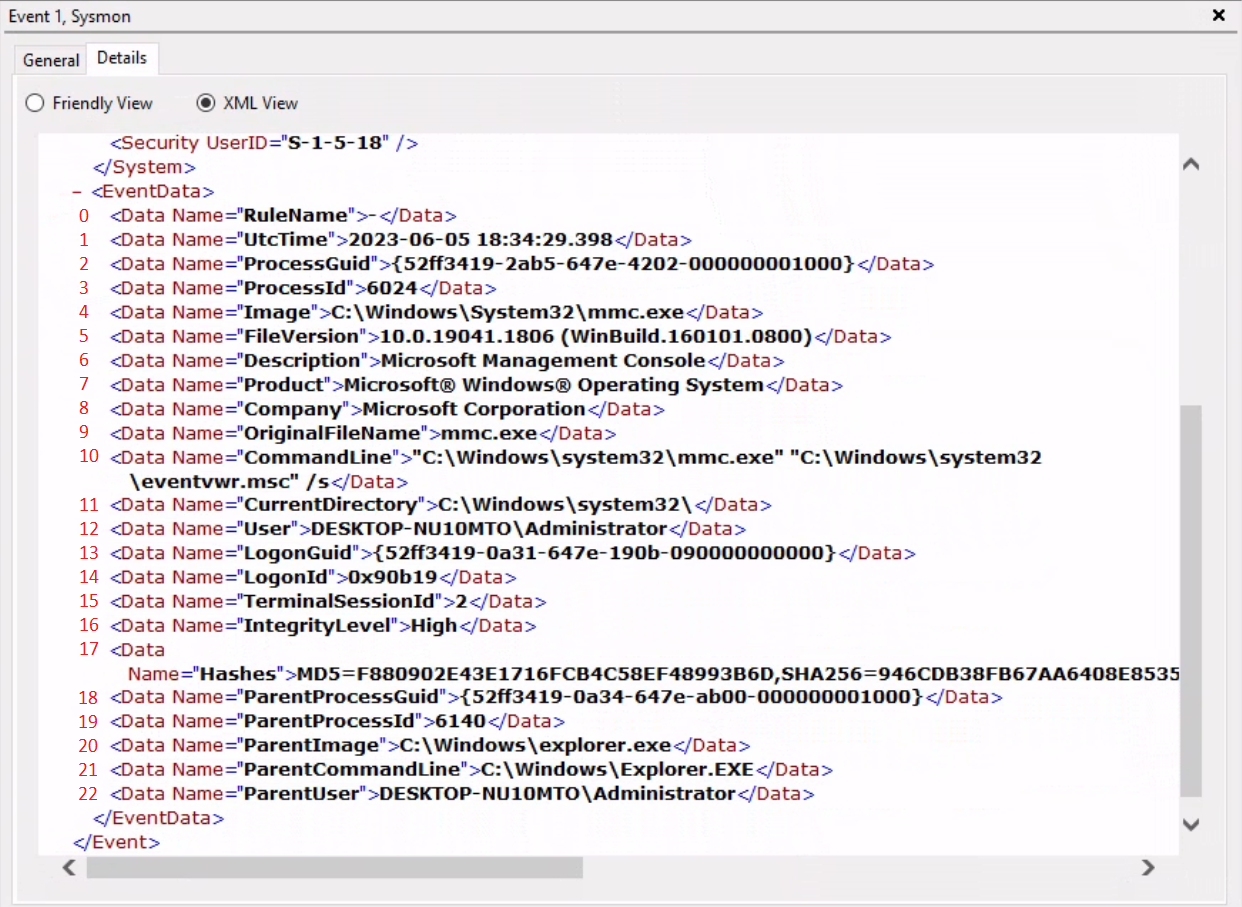
like "*-enc*": This is a comparison operator that matches strings based on a wildcard string, where represents any sequence of characters. In this case, it’s looking for any command lines that containencanywhere within them. Theencstring might be part of suspicious commands, for example, it’s a common parameter in PowerShell commands to denote an encoded command which could be used to obfuscate malicious scripts.| Format-List: Finally, the output of the previous command (the events that meet the specified condition) is passed to theFormat-Listcmdlet. This cmdlet displays the properties of the input objects as a list, making it easier to read and analyze.