Cyber Defenders - Lockdown Writeup
Category: Network Forensics
Checkout the lab here: https://cyberdefenders.org/blueteam-ctf-challenges/lockdown/
My first lab on CyberDefenders.

Description
TechNova Systems’ SOC has detected suspicious outbound traffic from a public-facing IIS server in its cloud platform—activity suggestive of a web-shell drop and covert connections to an unknown host.
As the forensic examiner, you have three critical artefacts in hand: a PCAP capturing the initial traffic, a full memory image of the server, and a malware sample recovered from disk. Reconstruct the intrusion and all of the attacker’s activities so TechNova can contain the breach and strengthen its defenses.
PCAP Analysis
Q1: After flooding the IIS host with rapid-fire probes, the attacker reveals their origin. Which IP address generated this reconnaissance traffic?
Open PCAP file with Wireshark, go to Statistics > Conversations, we can witness a large amount of IPv4 packets send from 10.0.2.4 to 10.0.2.15.
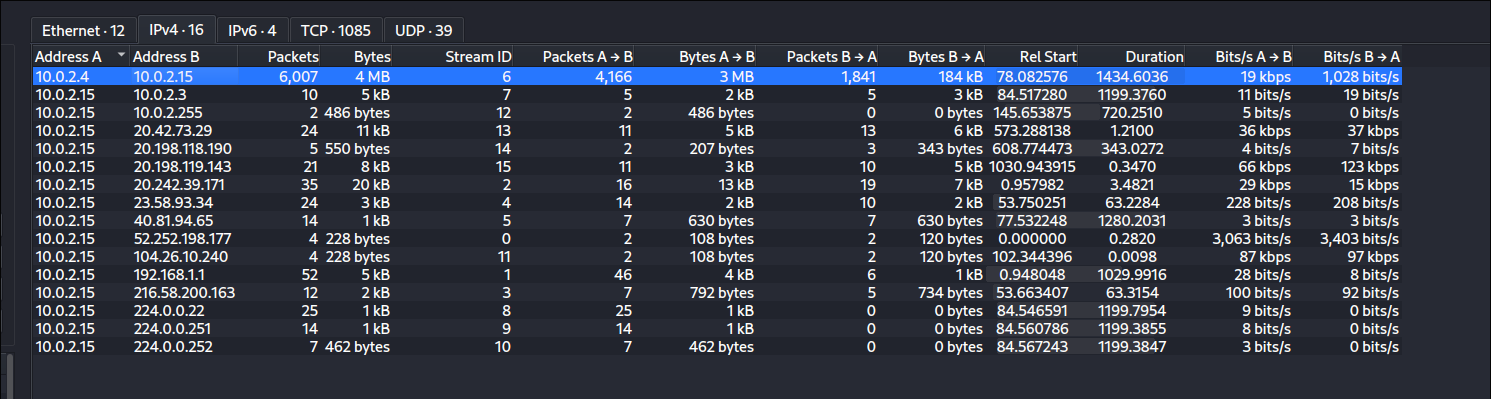
This is a sign to confirm this is a reconnaissance.
Answer: 10.0.2.4
Q2: The attacker is carrying out targeted enumeration against the HTTP service on the IIS host. Based on the HTTP request headers, which tool is being used?
By apply ip.src == 10.0.2.4 && http filter, we can check out all HTTP packet send from 10.0.2.4.
Follow HTTP stream to see full header:
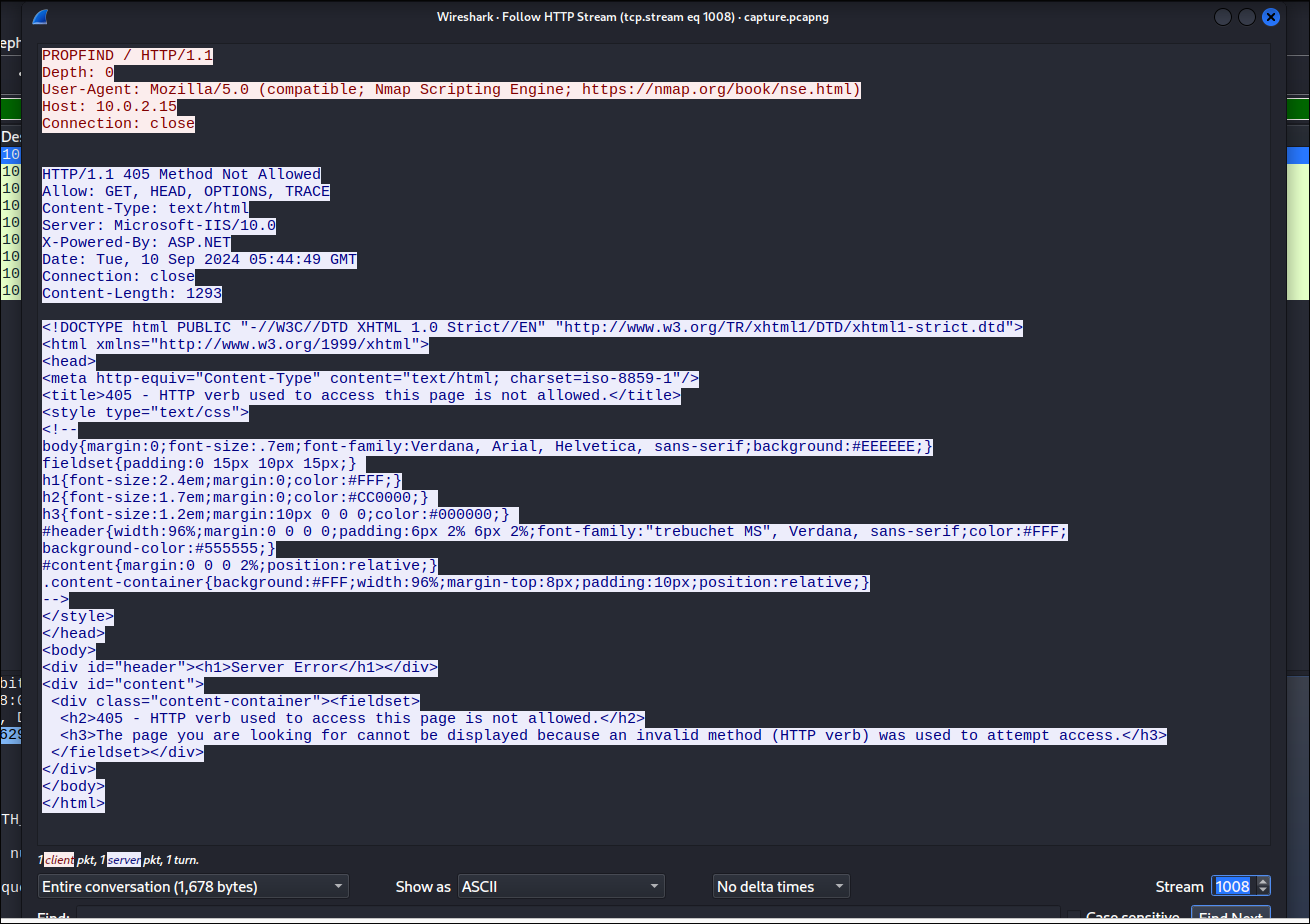
Answer: Nmap
Q3: While reviewing the SMB traffic, you observe two consecutive Tree Connect requests that expose the first shares the intruder probes on the IIS host. Which two full UNC paths are accessed?
UNC stands for Universal Naming Convention. It is used to specify the location of resources (like files, directories, or printers) on a Local Area Network (LAN) without needing a local drive letter.
The standard syntax looks like this: \\<ServerName_or_IP>\<ShareName>\<Directory>\<File>
\\: Indicates that this is a network path, not a local file path.<ServerName_or_IP>: The target machine hosting the resource. This can be a NetBIOS name, an FQDN (Fully Qualified Domain Name), or an IP address.<ShareName>: The specific directory or resource on the server that has been made available to the network. Keep in mind, the share name isn’t necessarily the actual folder name on the host’s hard drive → it’s just the label the server broadcasts.<Directory>\<File>: (Optional) The specific path within the share.
Note: or Linux environments: While Windows uses backslashes (\), tools on Linux systems (such as smbclient or mount.cifs) typically use forward slashes for the equivalent paths (e.g., //192.168.1.50/ShareName).
A Tree Connect Request is the actual protocol-level command sent over the wire to access the share defined by the UNC path. When you tell a system to open a UNC path, the OS translates that request into SMB network traffic. A Tree Connect is a specific step in the SMB connection sequence over TCP port 445.
Here is how a Tree Connect fits into the typical SMB handshake you would see in a packet capture (pcap):
- TCP 3-Way Handshake: (SYN, SYN-ACK, ACK) over port 445.
- Negotiate Protocol Request: The client and server agree on which dialect of SMB to use (e.g., SMB 2.1, SMB 3.0).
- Session Setup Request: The client authenticates (using NTLM or Kerberos).
- Tree Connect Request: Now the client asks to connect to the specific share. The payload of this packet actually contains the UNC path (e.g.,
\\192.168.1.50\IPC$).
If the user has the correct permissions, the server responds with a Tree Connect Response, granting a TreeId. The client will use this TreeId in all subsequent packets (like reading or writing files) to prove it has an active, authorized connection to that specific share.
According to official Microsoft technical documentation, instead of transmitting lengthy text, command types are assigned fixed numerical values for faster computer processing. Below is a list of some basic SMB command codes in the chronological order of a connection:
- 0 (Negotiate): Handshake, negotiating the protocol version.
- 1 (Session Setup): Sending login information and authenticating to establish a session.
- 2 (Logoff): Logging out of the session.
- 3 (Tree Connect): Requesting a connection to a specific shared folder or resource.
- 4 (Tree Disconnect): Disconnecting from the folder.
- 5 (Create): Requesting to create or open a file.
To filter out tree connect request, we use: smb2.cmd == 3

Answer: \10.0.2.15\Documents, \10.0.2.15\IPC$
Q4: Inside the share, the attacker plants a web-accessible payload that will grant remote code execution. What is the filename of the malicious file they uploaded?
Filter out http packet we can see a conversation between 10.0.2.4 to 10.0.2.15
The attacker send request GET /Documents/ to the server, here server return 200 OK with a list of all directories inside.
After like ~40 minutes, the attacker continues send request GET /Documents/ to the server, and now we can see a a brand new packet being listed shell.aspx.
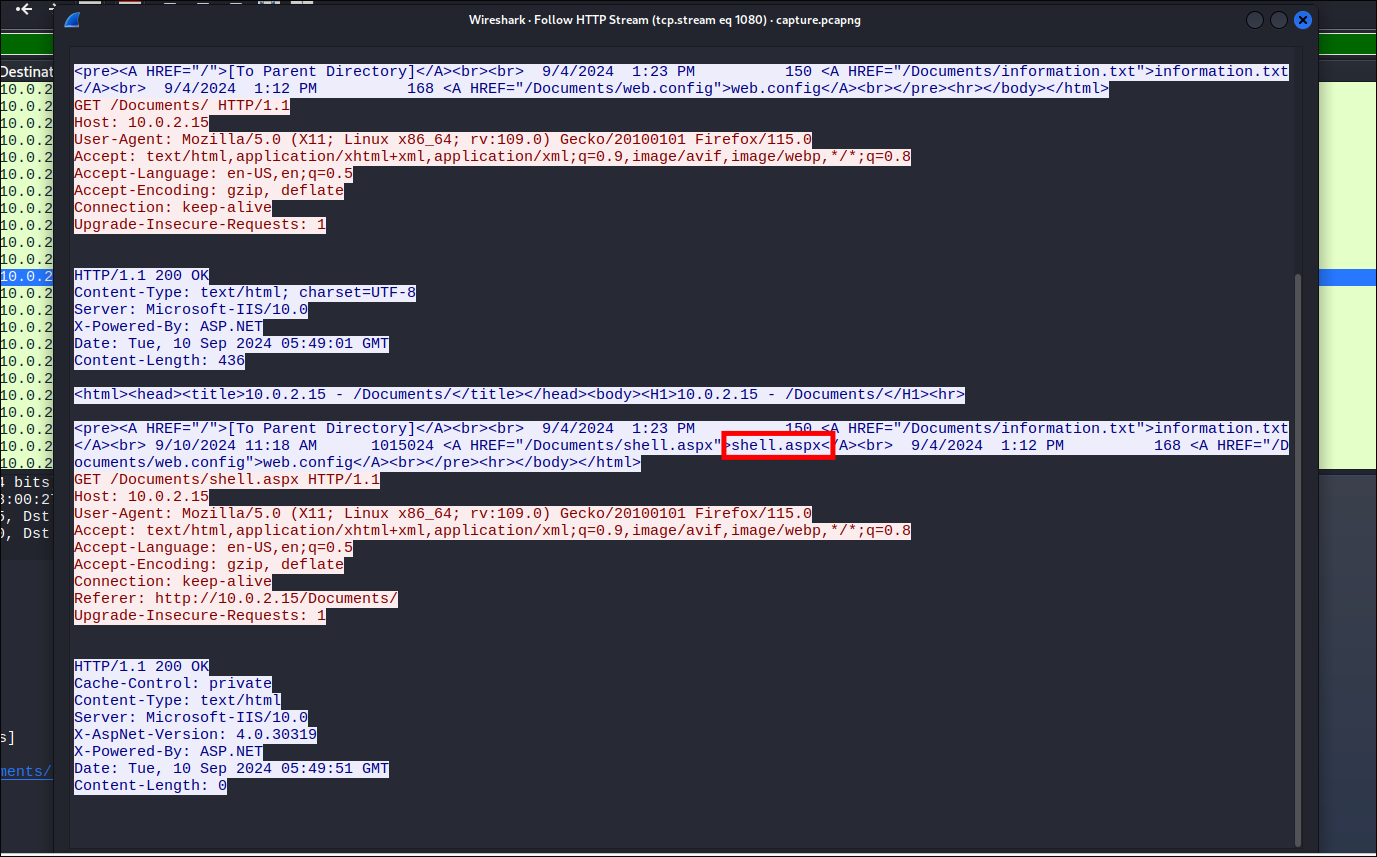
Answer: shell.aspx
Q5: The newly planted shell calls back to the attacker over an uncommon but firewall-friendly port. Which listening port did the attacker use for the reverse shell?
Right after the shell code being executed, we can see a TCP handshake through port 4443

Answer: 4443
Memory Dump Analysis
Q6: Your memory snapshot captures the system’s kernel in situ, providing vital context for the breach. What is the kernel base address in the dump?
Firstly, I run the provided memory dump file through an information-gathering plugin to see it basic information
1
2
3
4
5
6
7
8
9
10
11
12
13
14
15
16
17
18
19
20
21
22
23
24
25
26
$ python volatility3/vol.py -f memdump.mem windows.info
Volatility 3 Framework 2.28.1
Progress:  100.00               PDB scanning finished
Variable        Value

Kernel Base     0xf80079213000
DTB     0x1aa000
Symbols file:///home/kali/Desktop/volatility3/volatility3/symbols/windows/ntkrnlmp.pdb/EF9A48AFA50FF07C616585BB01919536-1.json.xz
Is64Bit True
IsPAE   False
layer_name      0 WindowsIntel32e
memory_layer    1 FileLayer
KdVersionBlock  0xf80079613f10
Major/Minor     15.17763
MachineType     34404
KeNumberProcessors      4
SystemTime      2024-09-10 06:14:13+00:00
NtSystemRoot    C:\Windows
NtProductType   NtProductServer
NtMajorVersion  10
NtMinorVersion  0
PE MajorOperatingSystemVersion  10
PE MinorOperatingSystemVersion  0
PE Machine      34404
PE TimeDateStamp        Sun Nov 10 07:20:39 2075
This memory dump appears to be from the same machine that was attacked in the previous section (IIS Server). Kernel Base (0xf80079213000): This is the exact memory address where the core operating system is loaded.
Answer: 0xf80079213000
Q7: A trusted service launches an unfamiliar executable residing outside the usual IIS stack, signalling a persistence implant. What is the final full on-disk path of that executable?
Normally, an IIS web server runs its core processes and source code from strictly controlled default directories, such as C:\inetpub\wwwroot\ or C:\Windows\System32\inetsrv\. Knowing these areas are heavily monitored, the attacker deliberately hid their malicious executable “outside the usual stack” in an obscure folder to evade detection.
When an executable runs, Windows creates Process Management Structures (specifically EPROCESS and PEB blocks) in the RAM. These structures maintain a live profile of the running process, which crucially includes the absolute on-disk path from where the file was originally loaded.
The challenge prompt explicitly mentions that a trusted service “launches” the unfamiliar executable. To visualize this lineage, we use Volatility 3’s windows.pstree plugin. pstree maps out the hierarchy of active processes, making it easy to spot when a legitimate system service spawns a rogue child process. We combine this with a grep filter to isolate the executables.
1
python volatility3/vol.py -f memdump.mem windows.pstree | grep *.exe

Looking at the output, an immediate anomaly stands out: a process named updatenow.exe.
The four asterisks (****) beside its name indicate its depth in the process tree, confirming it is a child process spawned by another service. More importantly, Volatility extracts its execution path, revealing that it is running out of the global Windows Startup folder. This is a classic persistence technique designed to automatically execute the malware whenever the server reboots.
Based on the memory extraction, the final full on-disk path of the implant is: C:\ProgramData\Microsoft\Windows\Start Menu\Programs\Startup\updatenow.exe
Answer: C:\ProgramData\Microsoft\Windows\Start Menu\Programs\Startup\updatenow.exe
Q8: The reverse shell’s outbound traffic is handled by a built-in Windows process that also spawns the implanted executable. What is the name of this process, and what PID does it run under?
We know the implanted executable is updatenow.exe (PID 900). The question asks: Who is the “parent” that created it? If you look closely at your pstree output, the columns represent <PID> <PPID>. For updatenow.exe, the PID is 900, and the PPID (Parent Process ID) is 4332.
The attacker’s reverse shell was connecting back to their machine on port 4443. using netscan plugin, scan the list for the foreign port 4443. On the third line from the bottom, you can see an active connection to 10.0.2.4:4443. If you trace that line to the right, it tells you exactly which process owns that connection: PID 4332, and the name of the process running on PID 4332 is listed as w3wp.exe. This is the official “IIS Worker Process”, a built-in Microsoft component used to run web applications.
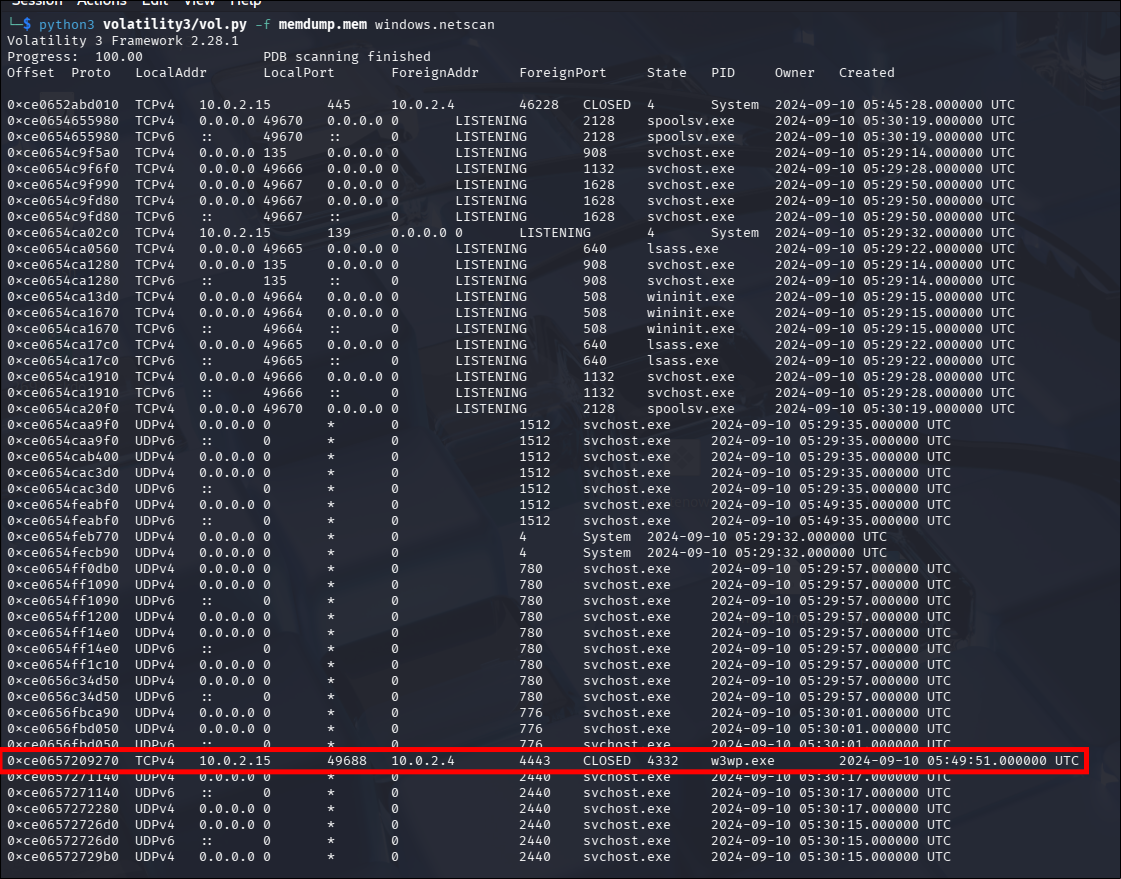
Answer: w3wp.exe, 4332
Malware Sample Analysis
Q9: Static inspection reveals the binary has been packed to hinder analysis. Which packer was used to obfuscate it?
Using detect-it-easy to identify
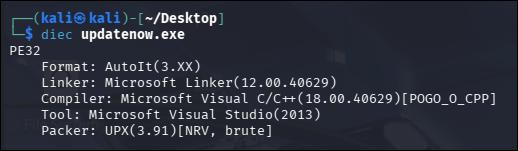
Answer: UPX
Q10: Threat-intel analysis shows the malware beaconing to its command-and-control host. Which fully qualified domain name (FQDN) does it contact?
Simple drag and drop the file into VirusTotal and move to the Relations tab to find the FQDN
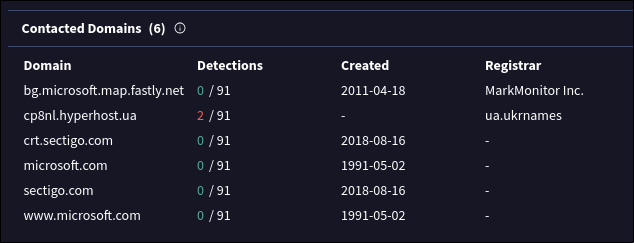
Answer: cp8nl.hyperhost.ua
Q11: Open-source intel associates that hash with a well-known commodity RAT. To which malware family does the sample belong?
In Detection tab. we can see AliCloud identify this as:
Trojan:Win/AgentTesla.SHZT
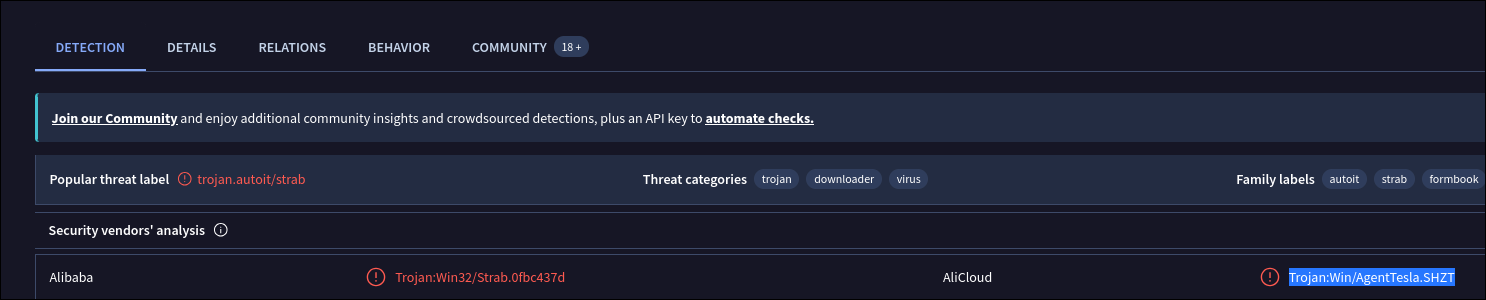
Answer: AgentTesla
Conclusion
The investigation successfully reconstructed the full attack lifecycle against the TechNova Systems IIS server. The attacker, operating from
10.0.2.4, initiated the intrusion with Nmap reconnaissance before enumerating SMB shares. They subsequently uploaded a web shell namedshell.aspxto the\Documentsshare, which established a reverse shell connection back to the attacker over port 4443 via the IIS worker process (w3wp.exe).To achieve persistence, the attacker dropped an executable named
updatenow.exeinto the Windows Startup folder. Further malware analysis revealed the payload was packed with UPX and communicated with the C2 domaincp8nl.hyperhost.ua. Open-source intelligence confirmed this sample belongs to the well-known commodity RAT family, AgentTesla.