Cyber Defenders - Volatility Traces Writeup
Category: Endpoint Forensics
Checkout the lab here: https://cyberdefenders.org/blueteam-ctf-challenges/volatility-traces/
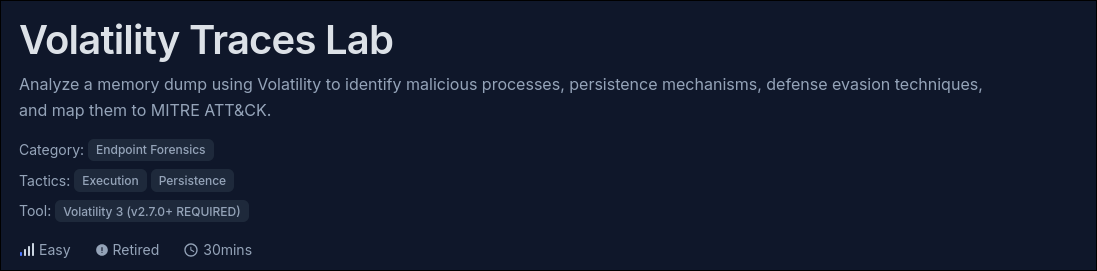
Description
On May 2, 2024, a multinational corporation identified suspicious PowerShell processes on critical systems, indicating a potential malware infiltration. This activity poses a threat to sensitive data and operational integrity.
You have been provided with a memory dump (
memory.dmp) from the affected system. Your task is to analyze the dump to trace the malware’s actions, uncover its evasion techniques, and understand its persistence mechanisms.
This is probably the first lab I’ve done related to Memory Forensics, so I will overexplain a bit so I can use it as a reference later. To get started, I need to understand the tool I will be using.
Volatility is a Python-based tool that allows extracting information from memory dumps, such as processes, network connections, registry keys, passwords, encryption keys, and more. Volatility can also perform advanced tasks like malware detection, timeline analysis, memory error remediation, and code injection.
Volatility works by using specific plugins for each operating system and memory format. You can also create your own plugins or use community-contributed ones.
Q1: Identifying the parent process reveals the source and potential additional malicious activity. What is the name of the suspicious process that spawned two malicious PowerShell processes?
Based on my research, for the operating system, when a running process opens another process, the initially running process is called the “parent process”, and the opened process is called the “child process”.
Typically, hackers use a seemingly harmless process to run malware in the background. If the “parent process” is found, experts will know where the malware originated and see if it’s stealthily opening any other malicious software on the machine.
According to the question, the two child processes called are two PowerShell processes. What I need right now is the true identity of these 2 child processes first. To extract the processes running on the machine at the time the memory was dumped, I used volatility combined with the windows.pslist plugin.
1
vol -f memory.dmp windows.pslist
pslist searches by walking along the doubly-linked list that the Windows operating system uses to manage processes. It finds the PsActiveProcessHead pointer and traverses the ActiveProcessLinks array of the _EPROCESS structure.

I can immediately see 2 powershell.exe processes with the Process ID (PID) in the first column being 6980 and 7656; both of these processes have the Parent Process ID (PPID) in the 2nd column as 4596. RegSvcs.exe also has a PPID of 4596, but I will mention it later.
The problem is that if malware (especially a Rootkit) uses Anti-Forensics techniques to “sever” its link from this list, the process will become invisible. pslist will not be able to see it, even though the process is still running in memory.
psscan does not trust the operating system’s list. Instead, it carves the entire physical memory space to search for distinct signature/pool tags of an _EPROCESS block (e.g., the Proc tag).
→ Regardless of whether the process is in the official Windows list or not, as long as its memory structure still exists, psscan will find it.
1
vol -f memory.dmp windows.psscan | grep "4596"

The output shows a partial name, InvoiceCheckLi, because the kernel’s process tracking structure only stores the first 16 characters. To identify the full name, I will use the cmdline to gather more details.
In the Windows operating system, each running process has a data structure in User-mode called the PEB (Process Environment Block). The cmdline plugin works by entering the memory of each process, finding the PEB structure, and then extracting the text string located in the ProcessParameters -> CommandLine field.
1
vol -f memory.dmp windows.cmdline | grep "InvoiceCheckLi"

Answer: InvoiceCheckList.exe
Q2: By determining which executable is utilized by the malware to ensure its persistence, we can strategize for the eradication phase. Which executable is responsible for the malware’s persistence?
Malware persistence techniques enable it to stay active even after system reboots or user logouts. Some common methods include scheduled tasks, Windows services, and registry modifications.
- Scheduled Tasks (
schtasks.exe): Attackers can schedule tasks to re-launch malware.
1
schtasks /create /tn "UpdateTask" /tr "malicious.exe" /sc onlogon
This command requests Windows: “Create a hidden schedule named ‘UpdateTask’. Every time the machine starts and a user logs into Windows, automatically run the ‘malicious.exe’ file.” Thanks to this technique, the malware does not need to deeply interfere with complex system files or the Registry while ensuring it will always be called back to continue its destructive actions, even if the victim has rebooted the computer.
- Windows Services (
sc.exe,net.exe): Malware can run as a service.
1
sc create MaliciousService binPath= "C:\path\to\malicious.exe" start= auto
This command requests Windows: “Register a new system service named ‘MaliciousService’. Every time the computer is turned on, automatically activate and run the malware file located at ‘C:\path\to\malicious.exe’.” While schtasks.exe runs malware with the privileges of the currently logged-in user, a Windows Service (sc.exe) by default will run under NT AUTHORITY\SYSTEM. This is the highest privilege level in the operating system (higher than Administrator), allowing the malware to disable antivirus software, deeply interfere with the operating system kernel, or easily install a Rootkit.
- Registry Run Keys (
reg.exe): Registry entries can auto-execute malware at startup.
1
reg add HKCU\Software\Microsoft\Windows\CurrentVersion\Run /v Malware /t REG_SZ /d "C:\path\to\malicious.exe"
This command requests Windows: “Add an entry named ‘Malware’ to the list of programs that start with the system. Every time the current user logs into Windows, automatically run the malware file located at ‘C:\path\to\malicious.exe’.”
Those executable processes have also been hidden from the pslist scan, so I will use psscan to check:
1
vol -f memory.dmp windows.psscan | grep "4596"

Answer: schtasks.exe
Q3: Understanding child processes reveals potential malicious behavior in incidents. Aside from the PowerShell processes, what other active suspicious process, originating from the same parent process, is identified?
As mentioned in Q1, RegSvcs.exe also has a PPID of 4596, which is a suspicious process originating from the same parent process.

Answer: RegSvcs.exe
Q4: Analyzing malicious process parameters uncovers intentions like defense evasion for hidden, stealthy malware. What PowerShell cmdlet used by the malware for defense evasion?
In PowerShell, built-in commands are called “cmdlets” (command-lets). They always follow the Verb-Noun structure. For example: Get-Process, Invoke-WebRequest, Stop-Service.
Since the parent process called 2 PowerShell child processes to execute some commands, I can use the cmdline plugin explored above to check.
1
vol -f memory.dmp windows.cmdline | grep "powershell.exe"

Add-MpPreference is a built-in command in PowerShell, used to configure and change the settings of the Windows Defender antivirus software. Malware often abuses this command to evade the defense system by adding malicious files to the exclusion list.
Answer: Add-MpPreference
Q5: Recognizing detection-evasive executables is crucial for monitoring their harmful and malicious system activities. Which two applications were excluded by the malware from the previously altered application’s settings?
I can see the two executable files that were excluded are:

Answer: InvoiceCheckList.exe,HcdmIYYf.exe
Q6: What is the specific MITRE sub-technique ID associated with PowerShell commands that aim to disable or modify antivirus settings to evade detection during incident analysis?
The specific MITRE ATT&CK sub-technique ID associated with disabling or modifying antivirus settings to evade detection is T1564.012.
- Tactic: Defense Evasion (TA0005)
- Technique: Hide Artifacts (T1564)
- Sub-Technique: Disable or Modify Tools (T1564.012)
Answer: T1564.012
Q7: Determining the user account offers valuable information about its privileges, whether it is domain-based or local, and its potential involvement in malicious activities. Which user account is linked to the malicious processes?
Security IDs (SIDs) are unique to each account, helping correlate accounts with suspicious activities. To know which account a process is run by in Windows, I need to check the SID of that process. Using the getsids plugin, I retrieve the SID of the malicious processes.
1
vol -f memory.dmp windows.getsids --pid 4596
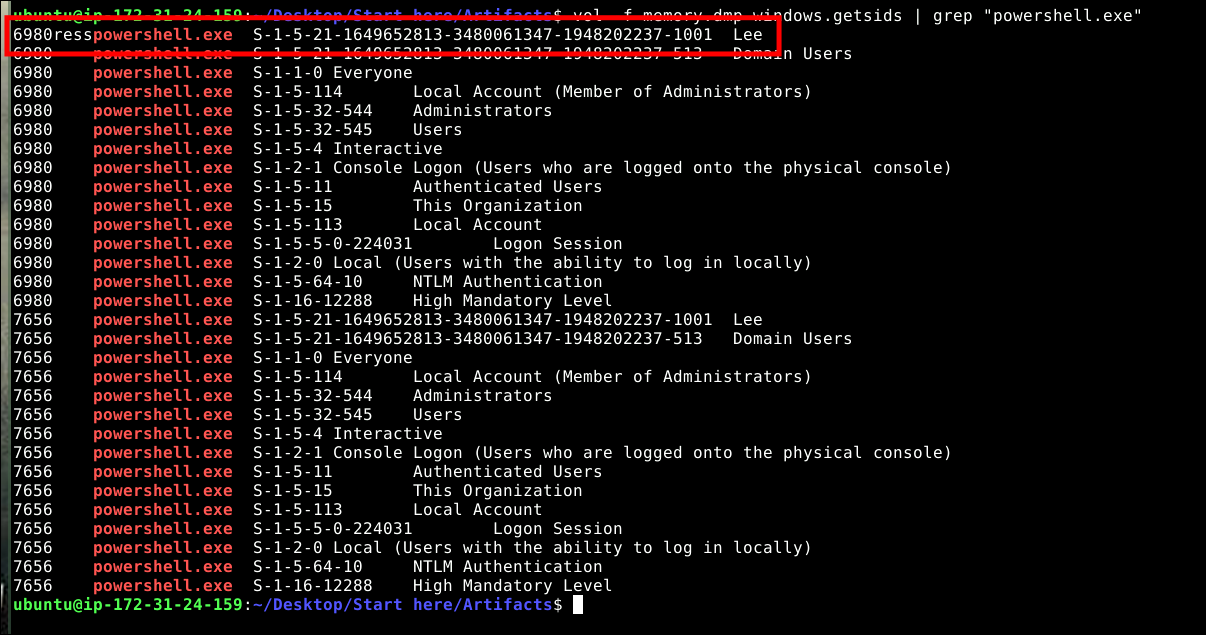
The SID S-1-5-21-1649652813-3480061347-1948202237-1001 corresponds to the user Lee, who is running the malicious PowerShell processes.
The following lines below list all the Groups that the Lee account (and this process) belongs to. This indicates what the malware can do on the system.
Answer: Lee
Conclusion
Through this memory forensics investigation using Volatility, I successfully reconstructed the malware’s execution flow and TTPs. The infection began with a malicious executable named
InvoiceCheckList.exerunning under the compromised user accountLee. To maintain persistence, the attacker leveragedschtasks.exeto create scheduled tasks.Furthermore, the malware demonstrated defense evasion capabilities (MITRE ATT&CK T1564.012) by executing PowerShell child processes using the
Add-MpPreferencecmdlet. This allowed the attacker to maliciously modify Windows Defender settings, explicitly excludingInvoiceCheckList.exeandHcdmIYYf.exefrom being scanned. This lab highlighted the critical importance of memory carving (using plugins likepsscanandcmdline) over relying solely on OS-provided active process lists when hunting for stealthy, evasive threats.